If you imported a filament profile into Bambu Studio and cannot find it in the list, check this first: the profile may well have gone in, just not where you expect and not under the letter you expect.
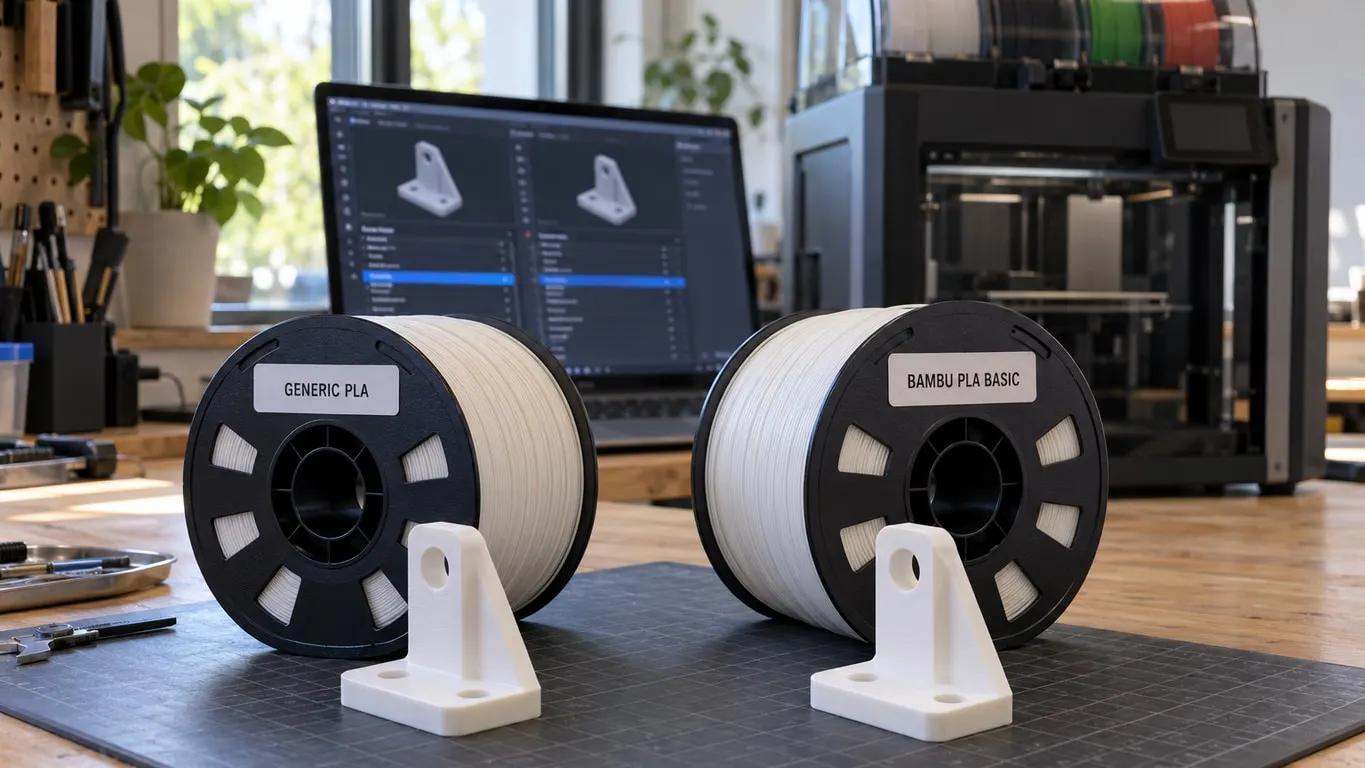
Two different things get confused. A filament type (PLA, PETG, TPU) and a filament profile (a set of settings prepared for one specific product from one specific brand) are not the same. Importing a profile does not add a new type; it puts a new set of settings under an existing type.
How to import
- In Bambu Studio: File → Import → Import Configs.
- Choose the
.json(or.bbsflmt) file you downloaded. - Confirm. The program shows a notification but does not say where it put it, which is where the trouble starts.
Profile files can come from the filament manufacturer's site, MakerWorld or a community repository.
Where it appears
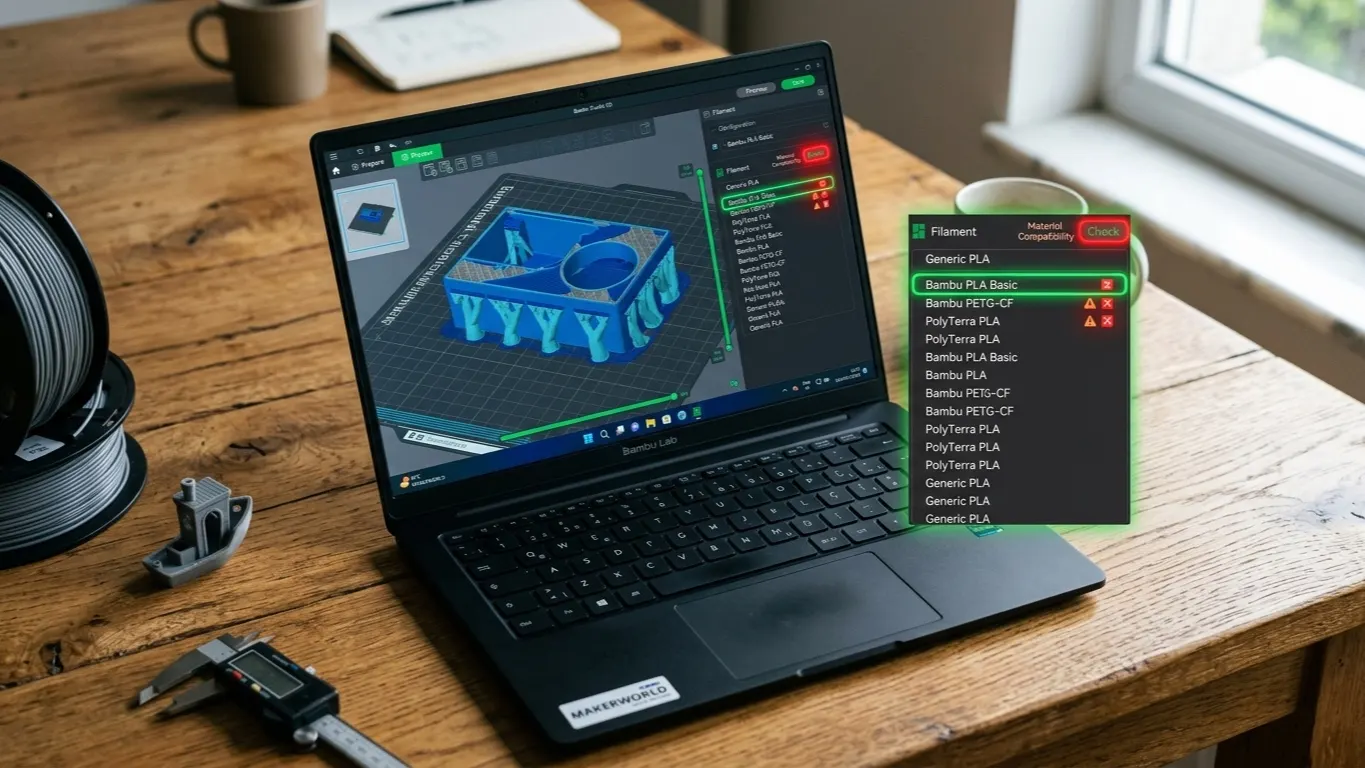
The imported profile appears in the filament box in the left panel, but it may not be visible when you open the list. There are three reasons.
1. You are looking under the wrong letter
A typical case: you import eSUN profiles, look under E in the list, and find nothing, because whoever prepared the profile named it A1, after the printer model.
You do not decide what name the profile shows under; whoever prepared it does. It could be the brand, the printer model, a material code, or something else entirely.
The fix: instead of scanning the list letter by letter, type the material name into the search box (eSUN, PETG, A1) and look at what comes back.
2. Under the wrong type
Profiles are grouped by material type. If you imported a PETG profile it will not appear under the PLA group. Make sure the type selector at the top is on the right material.
3. Printer mismatch
Profiles are tied to a printer model. A profile prepared for an X1 Carbon does not appear at all if the selected printer is an A1.
This is a silent filter: the program never says "this profile is not for your printer", it simply hides it. Switch the printer selection and look again to settle it. The same filter can catch presets you saved yourself, which is covered in fine vs high quality presets.
Creating one by hand instead of importing
Importing is not the only way. Copying an existing one and changing it is cleaner:
- Select the closest stock profile (Generic PETG, say).
- Click the settings icon beside it.
- Enter the values you want to change: temperature, flow ratio, price.
- Save with Save as under your own name.
The profile then sits under the name you gave it, under your printer, in the right type. None of the three problems with imported profiles arise.
A temperature tower is the quickest way to find the right values for a profile of your own, and Orca Slicer has these tests built into its menu.
What a profile brings, and what it does not
An imported profile carries: nozzle and bed temperature, flow ratio, cooling, retraction, maximum volumetric speed, drying temperature.
What it does not carry: calibration values specific to your printer. Flow calibration and pressure advance are values measured on your machine, and a profile does not overwrite them. That is a good thing: a value measured on someone else's machine would be wrong on yours.
Price is a profile field too: an imported profile brings whatever Price its author entered, or the parent preset's value if they left it alone (20 per kg in Bambu's PLA base). If you track cost, check that number after importing and enter your own; the detail is in the cost calculation article.
And a value sitting in a Generic profile has not necessarily been measured for that material. One case where a speed setting in the Generic PETG profile spoiled the surface is in the overhang slowdown article.
Even with the profile showing correctly, AMS slots can come up grayed out in the print window. The cause there is the slice rather than the profile, covered in the grayed-out AMS slot article.
Deleting a profile
A wrongly imported or no longer used profile is removed with Delete in the settings window. Stock (manufacturer) profiles cannot be deleted; only ones you created or imported can.
If the list has become cluttered, a cleanup pays off: delete the imports and rebuild the two or three you actually use under your own names. That ends the hunt through the list every time.