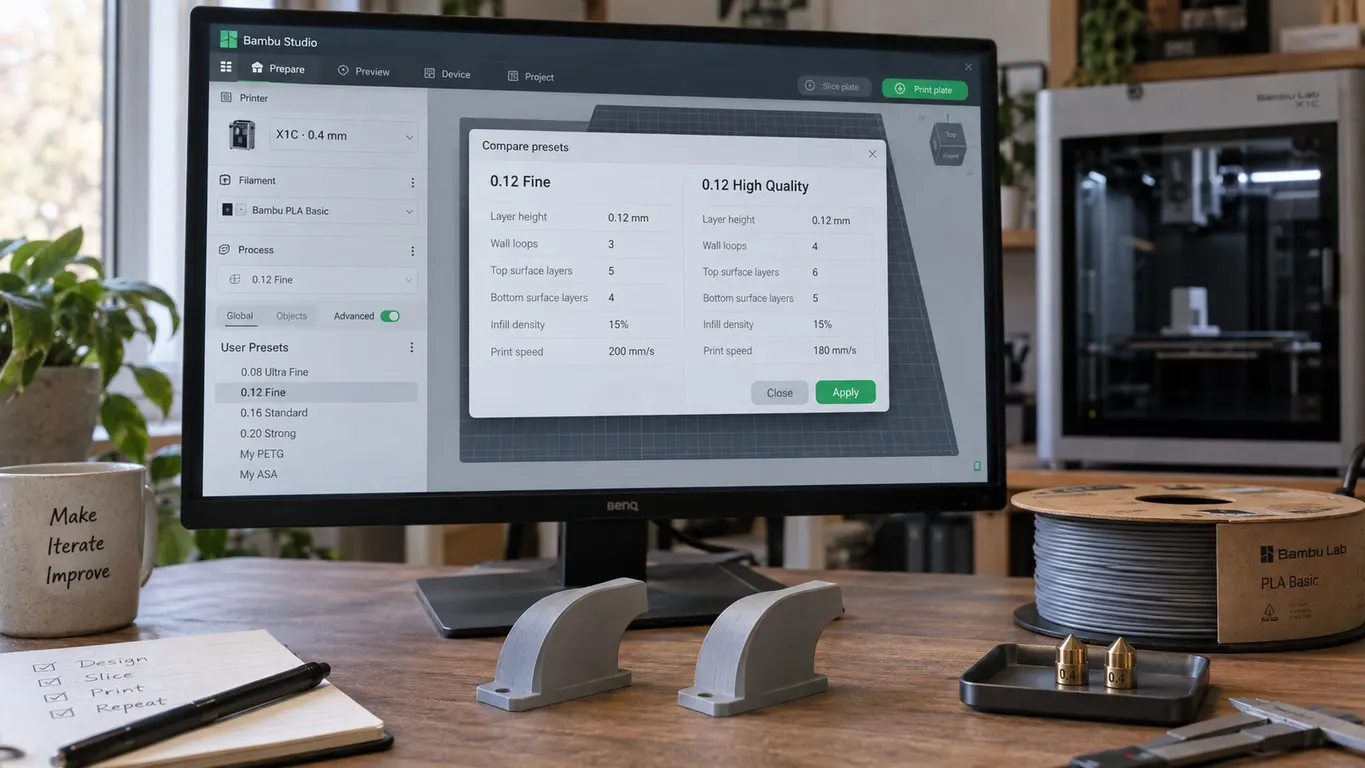
Open the process profile list in Bambu Studio and there are two entries at 0.12 mm: 0.12 Fine and 0.12 High Quality. The names read like a ladder, as though one is a step above the other. They are not. Both lay down the same layer height, and the difference sits somewhere else entirely.
The same concept trips people up from the other end too. One day Bambu Studio opens and the presets you have been using for months are simply not in the list. They are almost never deleted. Both puzzles come down to one thing: what a preset is actually attached to.
If your own presets have gone missing, the quick checks:
- Look at the selected printer, and pick the one your presets were saved for.
- If the selection looks right, add that printer to the printer list again.
- If no printer is detected at all, renew the WLAN configuration.
- Still nothing: check the nozzle diameter, the signed-in account and the project file, as described at the end.
What a preset covers
A preset sets specific settings for four groups, namely printer, physical printer, filament and print settings. The layout can feel complex and, in places, pointless, but it holds up well once you have several printers and filaments, because it makes printing-setting dependencies easy to define. In Bambu Studio's own interface those collapse into three: process (the print settings), filament and printer. The "physical printer" in that list is not a tab you will run into.
Bambu's own wiki page on creating custom presets fills in the rest. System presets ship with every supported printer: select a printer and a configuration bundle is imported carrying the process, filament and printer presets for that machine. System presets cannot be edited directly. What you can do is copy one: start from a system preset as your base, change what you want, click the save icon, name it, and pick the User Preset type in the dialog that comes up.
The conclusion worth holding on to: a preset does not float free, it hangs off a printer. The whole disappearing-presets story lives inside that sentence.
0.12 fine vs 0.12 high quality
Coming to an A1 Mini from an Ender 3 Pro and Cura, the confusion is usually vocabulary rather than print quality. Does "fine" mean models with fine detail, or is it a general description of quality? Neither. The 0.12 mm fine and high quality entries are just two printing profiles, two sets of settings, with a standard 0.12 mm layer height. You could make your own the same way and call it whatever you like.
| Profile | Layer | How it differs |
|---|---|---|
| 0.12 Fine | 0.12 mm | Has been in the stock list longer |
| 0.12 High Quality | 0.12 mm | Lower printing speeds and gyroid infill |
So the names are not a quality ranking, they are just names. Both are stock presets, and neither has a different standing from one you save yourself. The speed side of switching profiles, and what actually moves print time, is in the print speed article and is not repeated here.
In practice that leaves a simple call. On a part with a visible surface, the lower speeds in high quality may earn their keep, and the cost is time. On a functional part, the same layer height out of fine usually gets you to the same place.
Seeing the difference for yourself
More useful than any table is knowing how to look the difference up. Bambu Studio has a Compare presets button for exactly this: pick the first preset, then pick the second one to compare it with, and the program lists what separates them, setting by setting.
The window has separate Process Preset, Filament Preset and Machine Preset tabs, so one preset type is compared at a time. You pick the two sides as Preset A and Preset B; pick the same one twice and it tells you to select two different presets.
The button sits at the right-hand end of the top strip of the parameter panel: on the row carrying the Process (or Filament) heading, next to the Advance switch and the object-settings table icon, directly above the preset name. Hover it and the Compare presets tooltip comes up.
The tool is not limited to fine versus high quality either. You can extend the comparison to different filaments, different printers and different nozzle sizes. When you want to know where a preset of your own parts company with the stock one it came from, this is the place to look.
The other thing called a profile
One word covers three different things here, and they run together easily. Inside the slicer, "preset" and "profile" mean the same thing and get used interchangeably. The two that genuinely stand apart are these:
A preset in the slicer is a set of settings living on your machine and in your account: tied to your printer, saved by you, deleted by you. A print profile on MakerWorld is something else: settings prepared for one specific model and shared alongside it, uploaded by somebody else and downloaded by you. How to choose between several of them is in the MakerWorld print profile article.
There is a third sense as well: a filament profile built for one particular product from one particular brand. Importing one, and why it then refuses to turn up in the list, is covered in the filament profile article.
Missing presets: why they disappear
Two situations cover most cases, with different printers and different triggers but one cause.
After an update. You update Bambu Studio from 2.1.0 to 2.1.1 and the personal presets under User Preset are missing, moved into an Unsupported heading. Logging out, rebooting the computer, restarting Studio, logging back in, even uninstalling 2.1.1 and reinstalling 2.1.0: none of it helps. The update can switch the selected printer on its own, say from an X1C to a P1S, and the presets reappear once the correct printer is selected again.
With no update at all. On an A1 Mini under Windows 10, every customized filament and profile setting can vanish without anything having been updated. Custom presets are printer model specific and will not appear if another printer is selected by mistake. The same happens when no printer is selected at all, for instance because none is being detected; in that case renewing the WLAN configuration can bring everything back.
In neither case is any data gone. Because a preset belongs to a printer model, the list gets filtered the moment the selected printer changes or no printer is selected at all, and yours fall outside the filter. The same filter is what hides imported filament profiles, covered in the filament profile article; what is different here is that the thing being filtered is a preset you saved yourself, and that instead of being deleted it can land under the Unsupported heading. The same tie shows a third face in the send dialog: if the file's printer preset does not match the machine you picked, the Send button stays dead, covered in the incompatible printer article.
What to check, in order
- Look at the selected printer. First step and the highest-yield one. An update may have switched the printer, from an X1C to a P1S for example. If the selection has not changed, adding the printer your presets belong to (an X1C, say) to the printer list can bring them back. If the list is empty and there is no printer to select either, the problem may be the connection rather than the selection, and renewing the network configuration is the next move.
- Check the nozzle diameter. Per the Bambu wiki, process presets change with the nozzle diameter you select for the printer; the wiki's own example is the different process parameters shown for an X1C 0.4 nozzle and an X1C 0.2 nozzle.
- Check which account is signed in. The wiki says a newly created user preset is uploaded to Bambu Cloud and belongs to the account logged in at the time, with the preset feature enabled in Preferences as a precondition, and that it can be downloaded from the cloud automatically on each login. Signed in as the wrong account, you will not see your own. The wiki notes one exception: presets for non-Bambu Lab printers are not covered by cloud sync.
- Check whether the preset stayed inside a project. The wiki describes a project preset this way: save your changes as one and it lives only in that
.3mffile, is visible only while that project is loaded, and disappears once another project is opened. The settings you are hunting for may be sitting inside a project. - Check that you are looking under the right filament type. Profiles are grouped by material type; the detail is in the filament profile article.
The order matters. The first item settles most cases, and when it does not, the other four at least tell you where to look next. Your presets actually having been deleted belongs at the bottom of that list, not the top.