If Bambu Studio says this after slicing: Warning: it seems object xxx has floating regions. Please re-orient the object or enable support generation, open Preview at that layer before you change anything. It is one sentence, but there are two entirely separate situations behind it, and the fix for them is not in the same place.
In one, the model really is like that: on that layer there is a region with nothing beneath it and no hold on the rest, and support or a new orientation is the answer. In the other the model looks flawless, the warning insists anyway, and the problem is not in the slicer but inside the model file, where some element never actually touches the base.
What the warning says
In practice the warning amounts to this: if a layer has an area with no counterpart underneath, that area counts as a floating region. The nozzle will lay that line over air. Exactly how the check is done matters less than when it fires.
So the warning is not an error, it is a notice: "I am about to print something with nothing under it". The two routes it suggests are generic: change the orientation, or turn support on. Which one is right depends on why the region is floating, so you have to look first.
Diagnose first: go to that layer in Preview
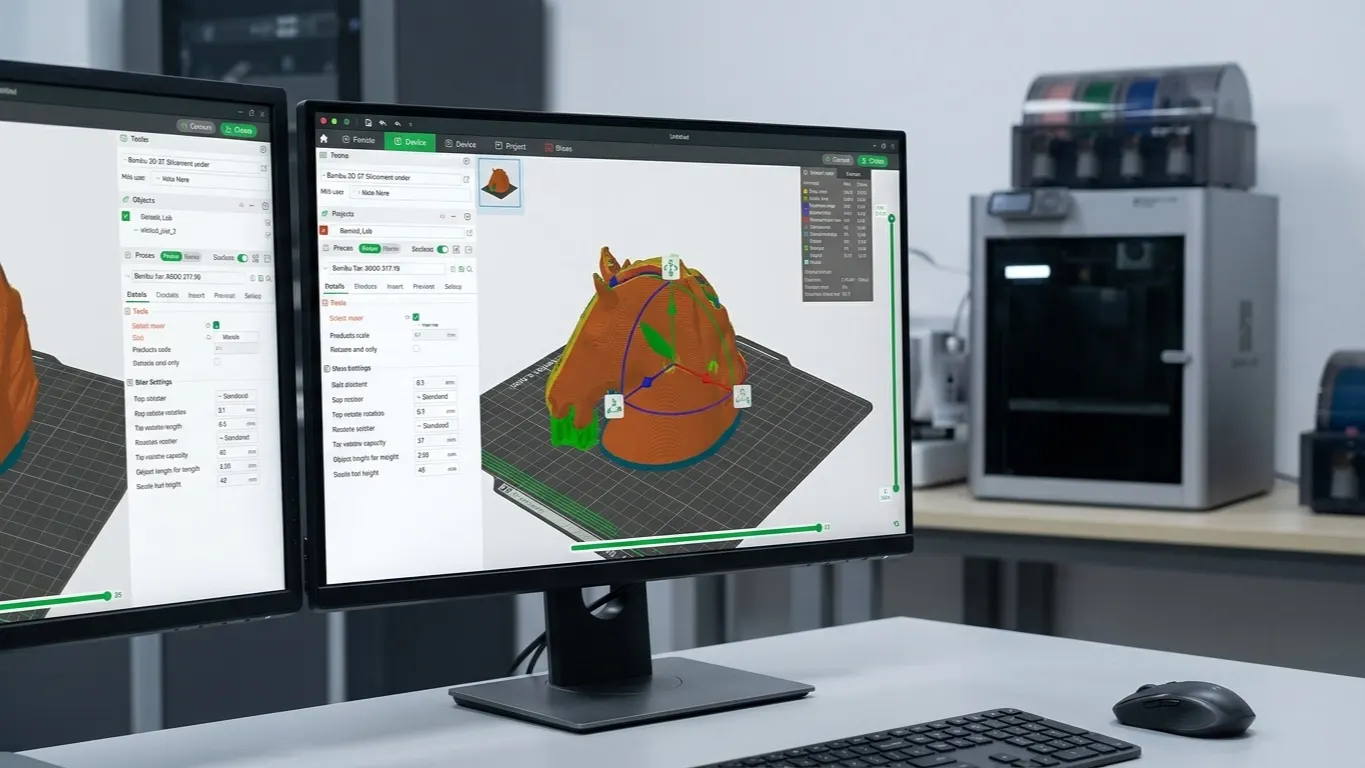
After Slice, switch to Preview and drag the layer slider to the level of the flagged region. What you are looking for is simple: on that layer, is there a lone island of lines with nothing connecting it to its surroundings?
If there is, and it genuinely belongs to the model, you are in Cause A. If you can see nothing at all and the model looks solid and flat, look at Cause B.
Empty layers can show up alongside the warning too: where the model at that height consists only of islands, there is nothing left for the slicer to produce on that layer.
There is a different problem that looks similar, by the way: a piece of the model is there in Prepare and gone entirely in Preview. There the slicer could not generate lines for that region, and the cause is line width; the detail is in the skipped-parts article. Here the lines are generated, they just hang in the air.
Cause A: a genuine island
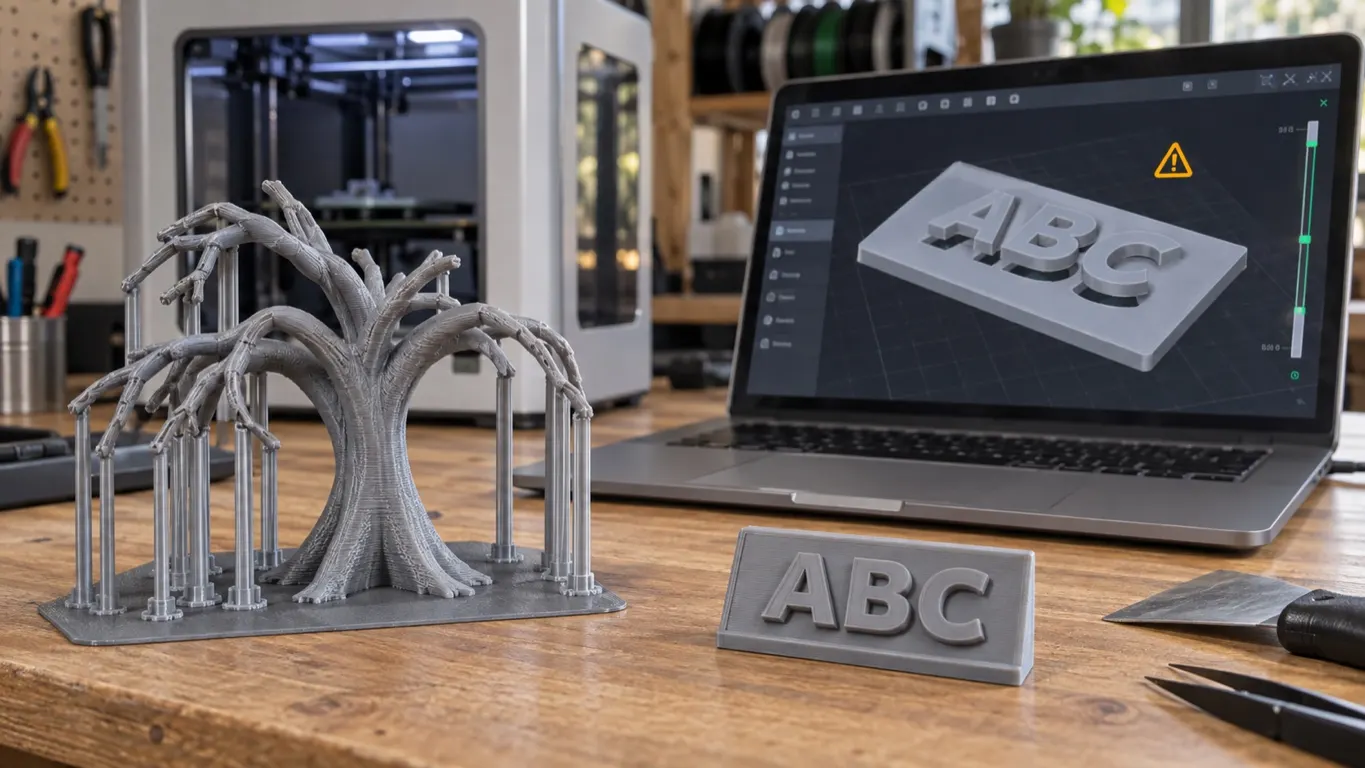
An island is an area on a layer with no connection to the rest of the model. The classic case is a tree model: branches that curl downward and end below the rest of the branch. Those tips have to start before the branch they belong to is printed, so they need support beneath them.
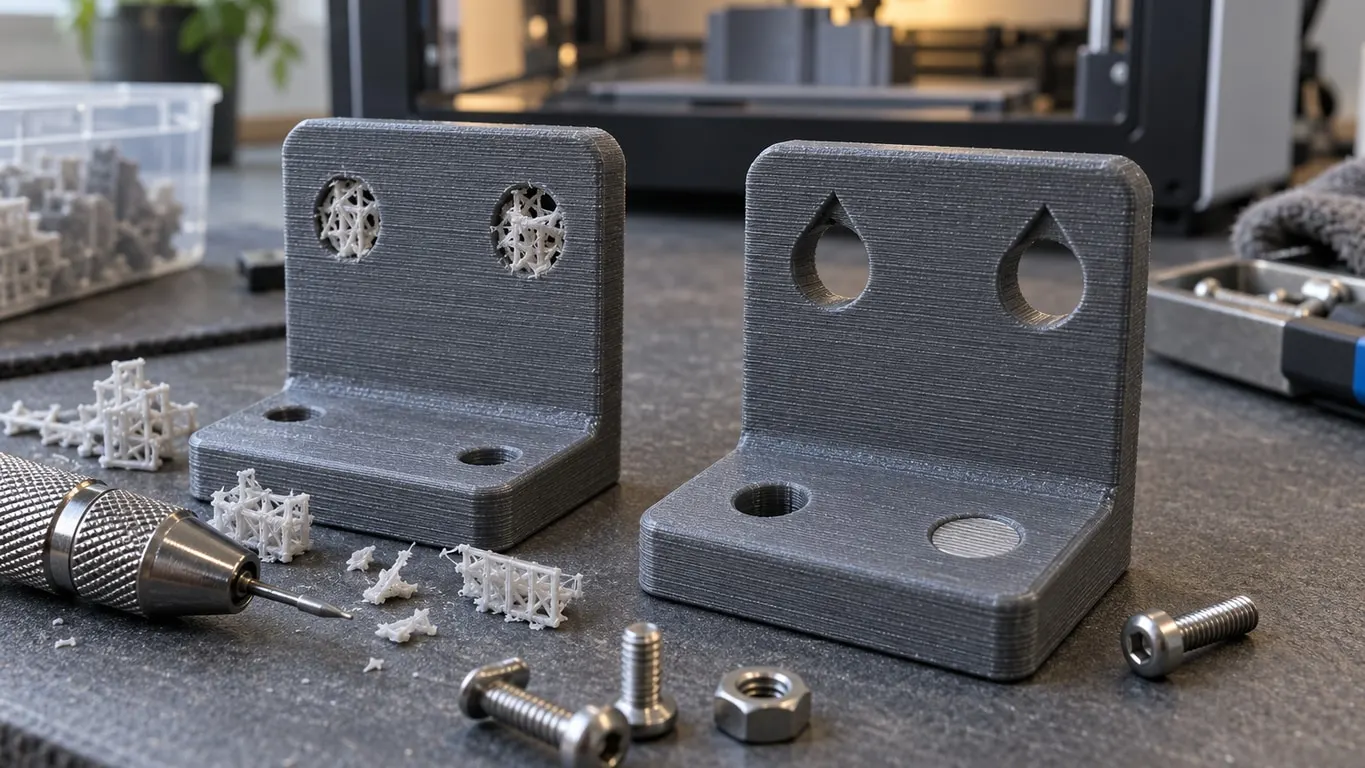
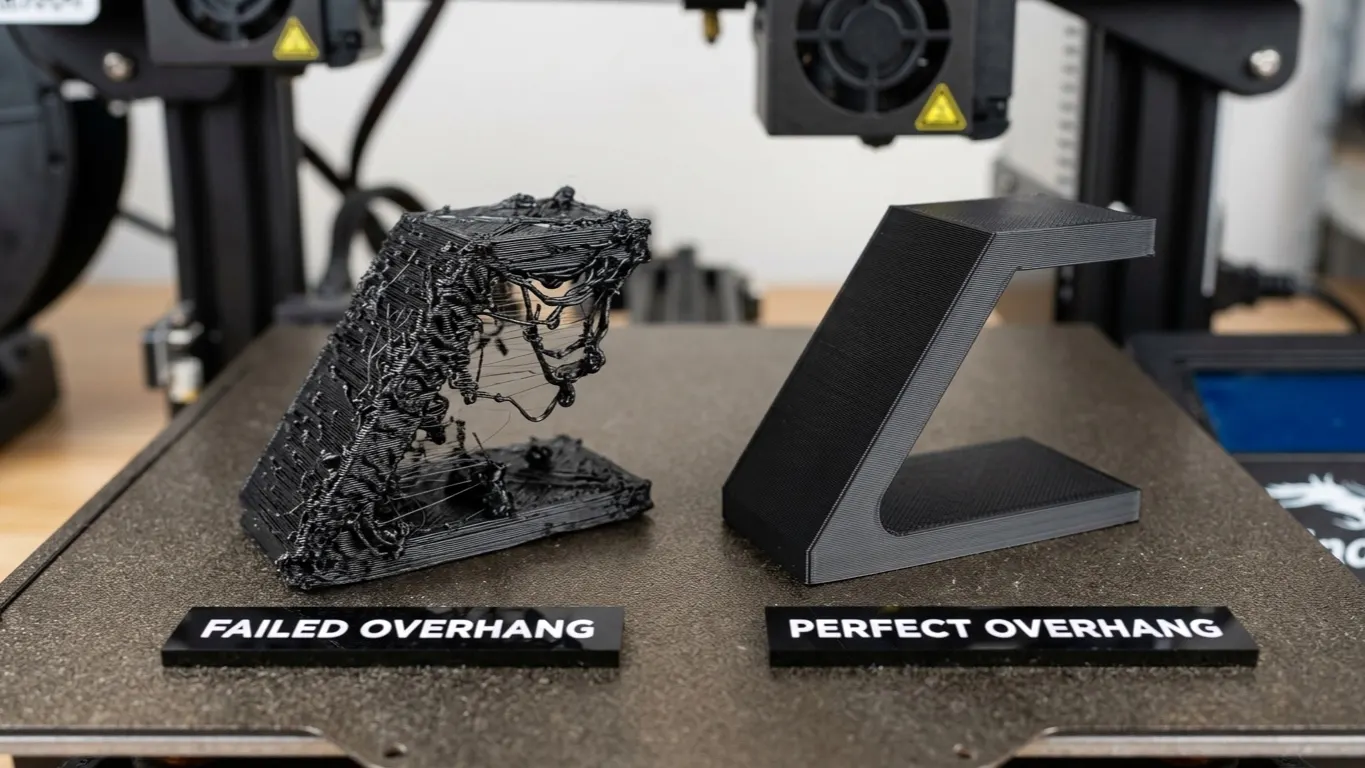
An island and an overhang are not the same thing, and they are easy to confuse. An overhang is partly anchored, with the layer stepping out past the edge of the one below; an island has no connection at all, it begins in mid-air. You can fix an overhang with cooling, speed and angle; the routes are in the droop article. An island you cannot fix that way: either you put something under it or you rotate the model.
The second issue is size. If the thinnest branch in the digital model is 0.174 mm, even scaled 500% it stays just under 1 mm, and the smallest width on the printed part may come out at about 0.85 mm. The rule of thumb: anything horizontal and wider than 0.4 mm is fine; tips like those are not. Printing one is literally trying to print a dot, and you cannot expect a printer with a 0.4 mm nozzle to manage anything much finer.
The conclusion is uncomfortable but plain: some models cannot be printed on FDM. Model-scale trees are sold ready-made, which is sometimes the better route. The solution is not a setting.
Cause B: an element that never touches the base
The opposite case: a flat object 75 x 54 mm and 3 mm thick, flat underside, with text standing 1.4 mm proud on top. There is nothing that could float, yet the warning appears. The Auto Orient button does not stop it either.
If the base really is flat, the likeliest explanation is the text sitting slightly above the height of the base. Without seeing the file that is a guess, but it is easy to narrow down by testing: slice the rectangle alone, and if there is no warning until the text goes back on, the text is the culprit. Lowering the text height does not help. A modeling program such as SketchUp may have placed the text slightly above the surface, leaving an invisible gap between the underside of the text and the top of the base; as far as the slicer is concerned, that text is floating.
The signs are easy to recognize: the object looks flat and solid, the warning insists, and playing with orientation changes nothing. The fix is not in the slicer either: seat the element on the base, merge the two bodies in CAD, or lower the text until it overlaps the base. You can also combine the bodies in Bambu Studio instead of CAD; the steps, and how Merge differs from Assemble, are in the assemble vs merge article. A face that never reaches the plate also turns brim ears red; that case is in brim ears not working.
What to do, in order
- See the flagged region in Preview. Skip this step and the rest is guesswork.
- If it is a genuine island, turn support on. That is the route the warning suggests. Where support is switched on, the difference between automatic, painting and enforcer, and when each one works, is in adding supports.
- Or change the orientation. If there is an angle that removes the island, it beats support; Place on face and the rotation tools are in mirroring, rotating and scaling. Auto Orient does not silence every warning, and it does nothing for an element that never touches the base.
- If the warning is spurious, fix the model. It is not solved with a slicer setting; the cause is in the model and so is the fix.
- If the region is tiny and cosmetic, ignoring it is an option too. But you can only say that if you did step one, that is, if you know which of the two causes you are facing.
The warning itself is not bad news. The slicer is telling you that somewhere in what you are about to print there is a region hanging over air; your job is to check whether it really is there.