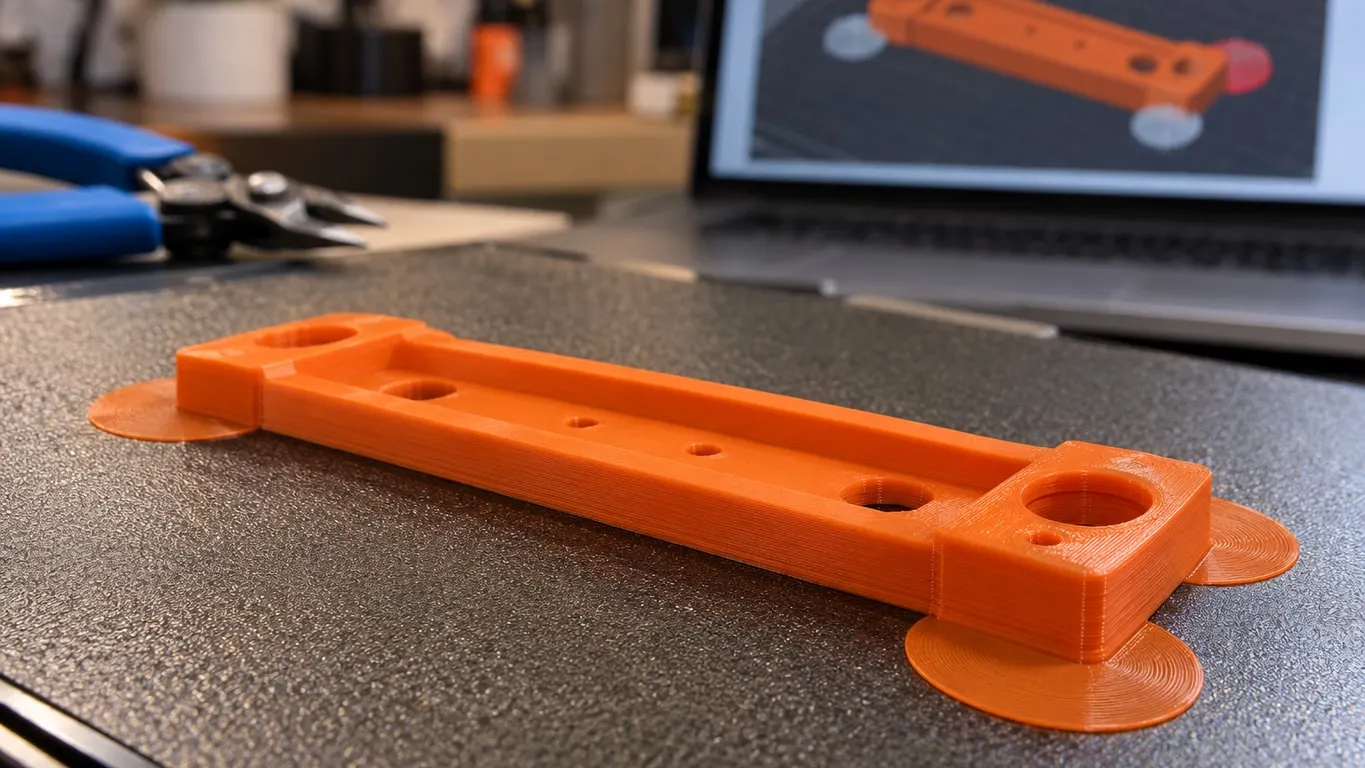
Brim ears, also known as mouse ears, fail in Bambu Studio for one of two reasons. If you placed ears with the Brim Ears tool and slicing shows no brim at all, the object's Brim type is not set to Painted. That is the only brim type that prints ears; on the default Auto, whatever you placed is ignored. If some ears turn red and the panel says Warning: 1 invalid brim ears, those ears do not touch the part where it meets the plate. When the face you clicked never sits on the plate, the fix is in the model, not in a brim setting.
Quick fix
- Open the tool with a single object selected: press E, or use the Brim Ears icon in the top toolbar.
- Look for Warning: The brim type is not set to "painted",the brim ears will not take effect ! in the panel. If it is there, the link under it, Set the brim type of this object to "painted", fixes the type for that object.
- Place ears by left-clicking (right-click removes one), or have Auto-generate points put them on the corners for you.
- Red ears left? Slice and check in Preview whether those corners exist on the first layer.
- A corner that is missing there needs a model fix; no brim setting reaches it.
Painted is the only brim type that prints ears
Brim type lives in the process settings on the Others tab, in the Bed adhension group (the typo is in the interface). Six choices:
| Option | What prints |
|---|---|
| Auto | A brim whose width Bambu Studio works out (default) |
| Painted | Only the ears you placed with the Brim Ears tool |
| Outer brim only | Around the outside, at Brim width |
| Inner brim only | Only around the inside of holes |
| Outer and inner brim | Both |
| No-brim | Nothing |
Two of the six leave Brim width grayed out: Auto, because it sizes the brim itself, and Painted, because each ear takes its size from the diameter set in the tool. The field only unlocks for the three manual types. One trap with Painted: if the object has no ears placed, it gets no brim of any kind.
Brim settings are per object, as the Bambu wiki points out, and the link in the tool panel only touches the selected object. Your global process value can stay on Auto while this one object prints ears, and the rest of the plate keeps its brim. The panel warns you only when the global value and the object's own value are both something other than Painted. If the global value is Painted but the object carries its own override, say Auto, you get no warning and still no ears, so check that object's own settings.
Brim-object gap (0 to 2 mm, default 0) is listed only in Advanced mode and applies to ears as well as regular brims. A gap that survives at 0 can come from Elephant foot compensation, per the wiki.
Why an ear turns red
An ear is never placed where you click: it drops straight down to plate level under that point. To judge it, Bambu Studio takes a cross-section of the object 0.1 mm above the plate as soon as the tool opens and checks each ear's circle against it. Overlap the footprint, or overlap an ear that already connects to it, and the ear is valid. Anything else is red and goes into the count shown in Warning: 1 invalid brim ears.
Click on a wing hanging just above the plate and the ear lands on empty plate under it, where the first layer has no part. It stays red and would anchor nothing. Raising Head diameter until the circle touches the main body clears the warning, but the wing is still not attached.
If Detection radius refuses to go past 2.0, that is not the cause either. Its ceiling comes from the model's first-layer outline, and only Auto-generate points uses the value.
Auto brim and the thin section that lifts
Auto does not use one width for the whole plate. It works out a width for each group of parts on the first layer, weighing part height, the shape of the footprint, the filament type and the top print speed. Anything below 5 mm is dropped unless the part is tiny, and nothing goes past 18 mm.
None of that helps a region that is missing from the first layer. Every brim type, Auto included, is built from the first-layer outline, so a wing that starts in mid-air gets nothing. When Auto wraps the part but leaves out exactly the thin section that lifts, suspect that first. Slice, drag the vertical slider down to the first layer in Preview, then go up one. Missing on layer 1 and there on layer 2 means it is floating. Studio may flag it with a floating regions warning too; the floating regions article covers both causes behind that message.
A real case: the part prints on its side, and a small oval boss on its top edge sticks out slightly past the side face. The part rests on the boss instead of the face, which hovers just above the plate. Fusion 360 shows the face as perfectly flat, yet the slicer leaves it off layer 1. Extruding the sides out about 0.05 in (1.27 mm) in CAD put the face on the plate in the slicer.
Ways out, cleanest first:
- Change the model. In CAD, either trim the boss so it stays behind the face or push the face out past the boss.
- Pick another face to print on. When a different flat face can rest fully on the plate, the Lay on face tool turns the part onto it in one click.
- Sink it slightly. Lowering the object a layer or two with the Move tool is worth a try, and Bambu Studio accepts an object that goes below the plate. You lose that much from the whole bottom of the part, which matters where dimensions are critical. Slice again and check layer 1.
With the face down, the thin section prints on the first layer like the rest. If weak adhesion still lifts it, that is where Painted pays off: a few corner ears come off far more easily than a full brim.
The Brim Ears panel, field by field
The tool needs exactly one object selected; with several, its tooltip just says Please select single object. and nothing opens. E opens it, even though the Keyboard Shortcuts list leaves that key out.
| Field | Range | What it does |
|---|---|---|
| Head diameter | Slider 5-20 mm, starting at 16 times the first-layer line width | Sets the diameter of a new ear, or of the selected ones |
| Max angle | 0-180, starting at 125 | Auto points go on corners sharper than this |
| Detection radius | Starts at 1; the maximum depends on the model | Simplifies the outline before auto points are placed; a larger value gives fewer ears |
| Section view | Also on Ctrl+mouse wheel | Cuts away the model so you can see inside |
Under the fields sit Auto-generate points, Remove selected points and Remove all. Shift+left-click selects several ears.
Colors: valid ears are light gray, close to white; invalid ones translucent red; a selected ear dark teal; the one under the pointer bright cyan. Leave the tool and the ears vanish from view; per the wiki, their effect shows only after slicing.