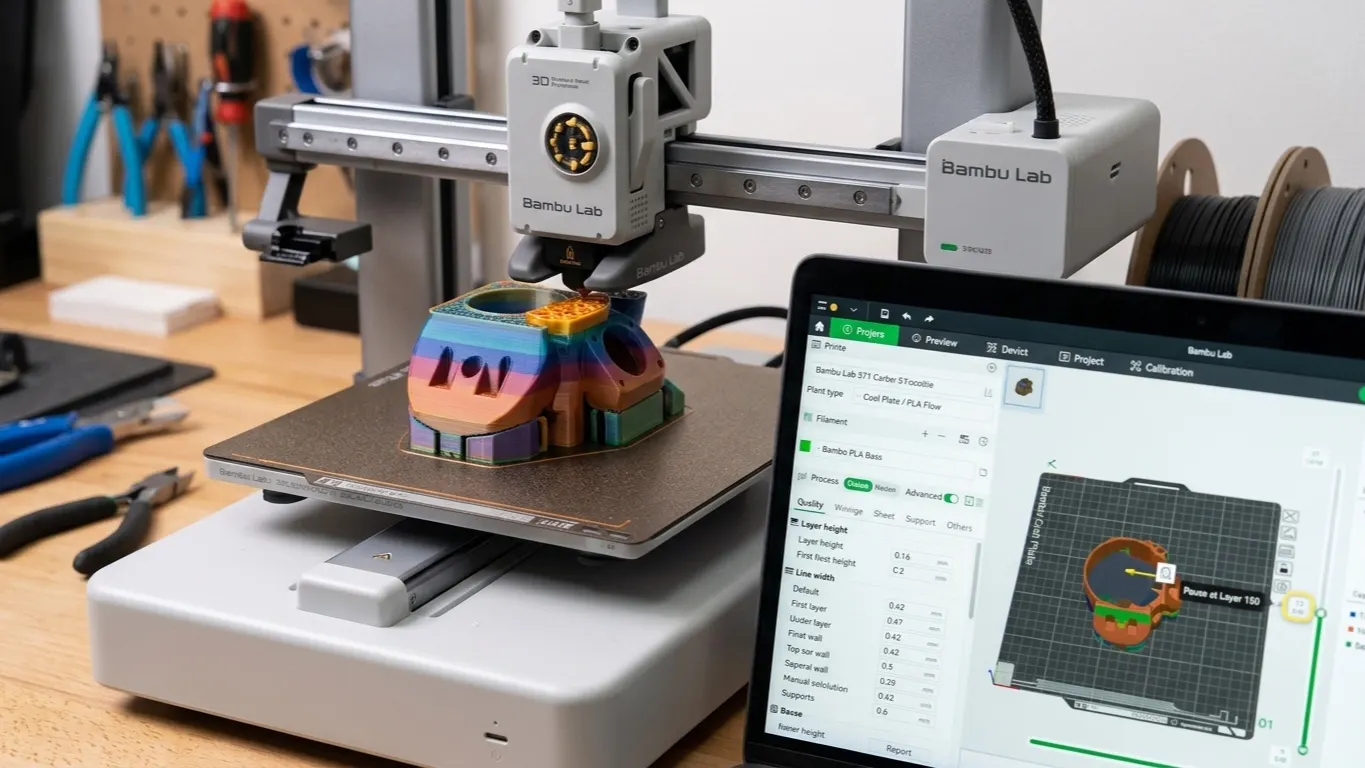
To pause a print at a specific layer in Bambu Studio you use the layer slider in the Preview tab: go to the layer you want, right-click the slider handle marked +, and choose Add Pause. The printer stops at the start of that layer, parks the head and waits for you.
People use it mostly for three things: embedding a nut or magnet, changing color by hand, and dropping a part inside the print.
Step by step
- Slice the model and switch to the Preview tab.
- Move the vertical layer slider on the right to the layer you want. The layer number shows beside the slider.
- Right-click the slider handle marked +.
- Choose Add Pause.
- A small marker appears at that layer. Send the print.
The pause happens at the start of that layer. Pick layer 107 and layer 106 will be finished while 107 has not started. That matters when embedding a nut: you want the layer before the pocket closes, not the one that closes it.
Press Resume on the printer's screen to continue.
How it differs from an automatic color change
The same menu has Add filament change, and the two get confused. The same place also offers a temperature change as a third option.
| Pause | Filament change | |
|---|---|---|
| What it does | Stops and waits | Changes filament automatically |
| Purge tower | None | Yes, uses filament |
| Manual work | You swap the filament | None |
| When | Embedding parts, manual color | Multi-color printing |
If you want a color change and have no AMS, a pause uses less filament. The full method is in multi-color printing without an AMS. An automatic change builds a purge tower beside the model and dumps the old color into it. Pausing and swapping by hand still purges a little, but nothing like a tower.
So there are two ways to the same result, and one is noticeably cheaper in plastic.
Changing color by hand
Without an AMS, a pause is how you get a color band:
- In Preview, pick the layer where the new color should start and choose Add Pause there. Since the pause comes at the start of the layer, that layer prints in the new color.
- When the printer stops and parks the head, swap the filament by hand. It purges a little, but nothing like a tower.
- Press Resume on the printer's screen and the print carries on in the new color.
The bed stays hot during the wait, so there is no need to rush the swap, but do not drag it out; a long wait can let corners lift.
Embedding a nut
The most common use. Things to watch:
- Draw the pocket 0.1-0.2 mm oversize. At exact dimensions the nut will not go in.
- Put the pause one layer before the pocket roofs over.
- Check the nut sits flush after inserting. If it stands proud the nozzle hits it and the print is over.
- The bed stays hot while the printer waits, so there is no rush, but do not leave it too long either; a long wait can let corners lift.
When it does not work
The pause is written into the G-code. Send the print from Bambu Studio and it survives. Write the sliced file to an SD card and then re-slice on the printer, though, and the pause can be lost.
Putting a pause very early, in the first few layers, also risks the part lifting as the head pulls away, since it is not yet firmly stuck to the bed.
If the menu opens but the Add Pause line is grayed out and will not click, the cause is usually the Print sequence setting; the grayed-out Add Pause article walks through it.