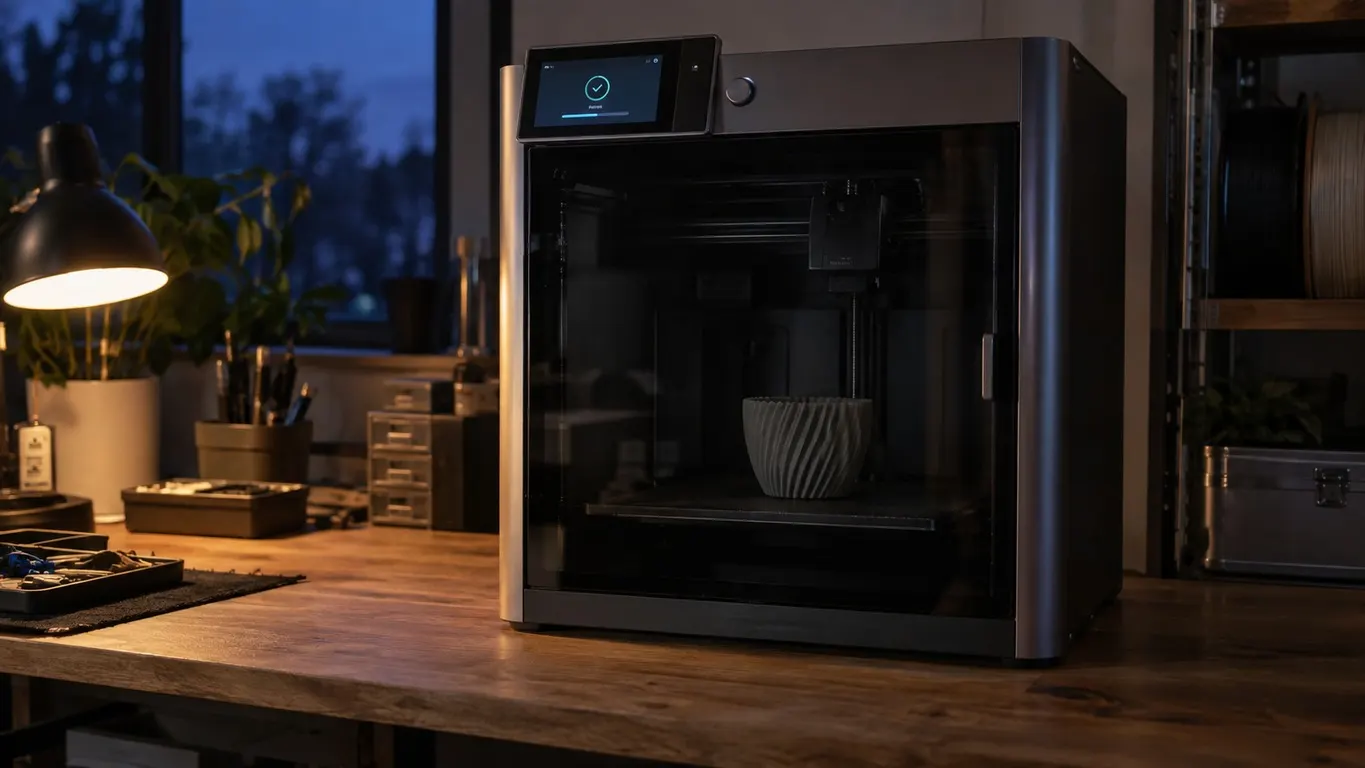
If you own a P1S, you have probably walked past the printer at 2am and found the chamber lit up over a part that finished hours ago. The obvious fix is a line in your end-of-print settings so you stop reaching for the screen or the app, but no known G-code switches the main light off. What works is a behavior rule, and which side of it you end up on depends on how you left the light before you hit print.
The short version:
- Switch the chamber light off on the screen or in the app before you send the job.
- Send the print.
- Leave the light alone, on the panel and in the app, until it finishes.
The rule that works: start with the light off
The rule is one sentence: if the light is off at the beginning of the print, it turns on when the print starts and shuts off at the end.
The other half matters just as much: turn it on by hand and you have to turn it off by hand. So the behavior most people are looking for is already there, and the only condition is leaving the light off when you send the job and keeping your hands off the panel and the app while it runs. The moment you switch it on yourself, the printer treats the light as yours to manage and leaves the ending to you.
The X1 shows the same behavior alongside timelapse: with the chamber light off before the print starts and timelapse enabled, the light comes on during the print and goes off when the print completes. Nobody has documented the mechanism; all that is known is the behavior.
There is no known G-code for the main light
No G-code is known to turn the main light off. There is one for the toolhead light, and that is all. On the X1 series no such code exists for the chamber either; the printer manages the general LED itself. Nothing light-related has turned up in the machine code, which leaves the automatic behavior described above.
Knowing this up front saves an evening. What G-code is and what a line of it looks like is covered in the G-code article; what is missing here is not knowledge, it is the command itself.
One workaround skips the light question altogether: run the printer on a wifi-connected plug, keep it powered down, and bring it up remotely when you need it. That moves the problem outside the slicer entirely.
The one light command you can actually source
The only light command with a traceable source is M960 S5 P0, with M960 S5 P1 as its opposite. Those lines sit in a community-maintained list of X1 G-code, where they are listed as Bambu Lab toolhead logo light off / on, meaning the illuminated logo on the toolhead. On an X1 you can put the command in your end G-code to switch the logo off; the approach that fails for the main light works for the logo one.
That list opens with a caveat worth repeating: Bambu Lab has published no official G-code documentation, and the entries come from user experimentation and assumption. The command is collected, not documented.
One distinction follows from it:
| Light | Is there a command |
|---|---|
| Chamber (main) light | No command with a traceable source |
| X1 toolhead logo light | M960 S5 P0 / P1 in the community list |
The second distinction is about models. The P1 series has no lighted toolhead; that is an X1 feature. On a P1S or an A1, the toolhead light command has nothing to switch.
Where end-of-print G-code lives
You may still want your own lines at the end of a print, because there are other things worth putting there. The field is in the printer settings, under Machine G-code, in the Machine end G-code box. Whatever runs last after a job finishes lives there.
Do not confuse it with adding code at a layer. To run a command at a specific layer you use Add Custom G-code from the slider in the Preview tab, and that command goes into that one file; the method is in changing temperature at a layer. Machine end G-code is written into the profile instead, and it runs on every print you slice with it.
The risk of editing the start side of that same section is in the calibration article: copy the existing code somewhere before you touch it.
When it does not work
The rule does not produce the same result on every printer.
If you switched the light on by hand. This is the single exception. Turn the light on mid-print to take a look and it will not go off at the end.
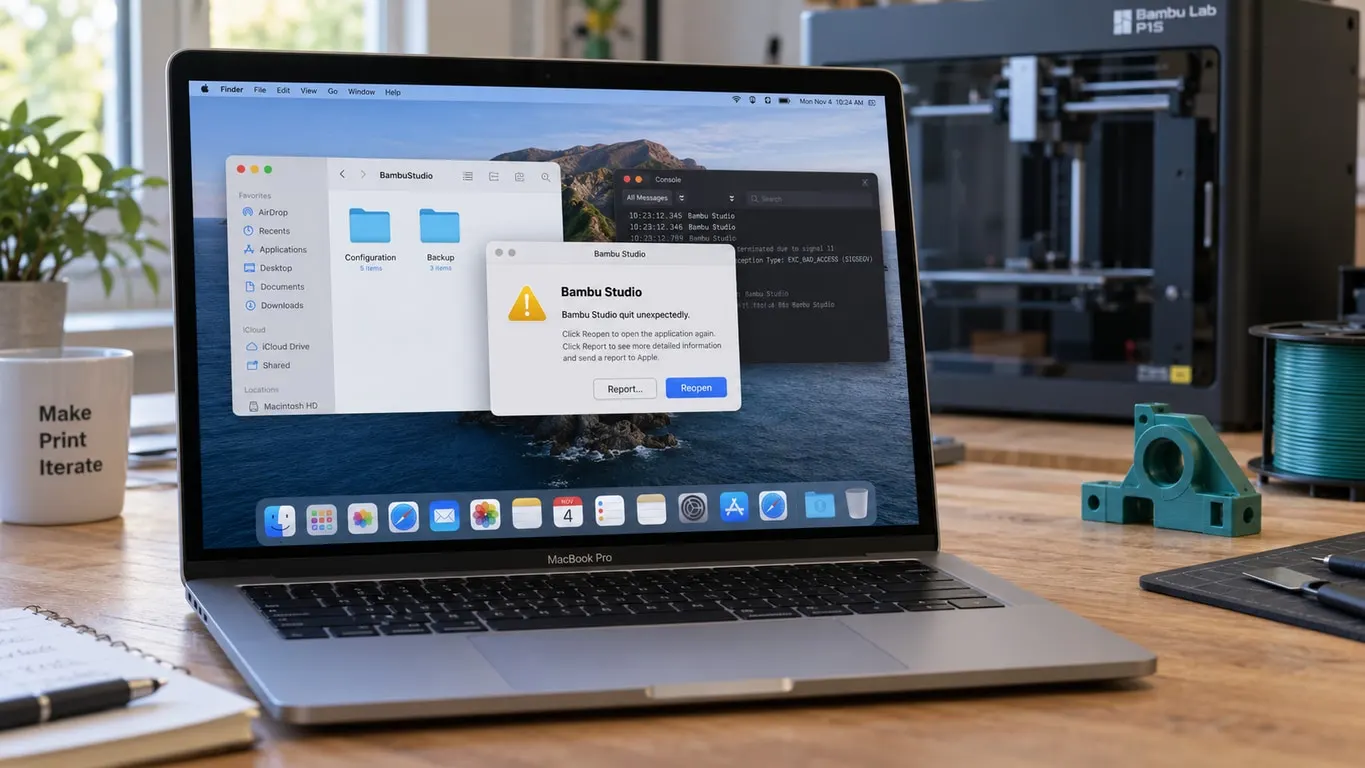
There are reports of it failing on the P1S. On some P1S printers the automatic behavior never works, and the chamber light always comes on and stays on. It has been claimed that the behavior became permanent with firmware 1.05, though that is unconfirmed, and updating to 1.06 has been reported to make no difference. Whether Bambu treats this as a bug or a choice has never been settled, so there is no rule to draw from it; if it does not work for you, you are not alone.
If the light comes on before you even sent the job. If your P1S light started switching itself on after a firmware update and comes on before the file has finished downloading to the printer, whatever turns it on is not G-code in the file. Adding M960 S5 P0 to your end G-code will not put the chamber light out in that case either.
What it costs you on the camera
Keeping the light off has a hidden price: a dark chamber means a dark camera image. If you watch prints remotely or record timelapses, the light is working for you.
The behavior rule happens to protect that. Leave the light off and the printer runs it for the duration of the print, so monitoring and timelapse are not left in the dark; the light only drops out once the job is done. All you lose is the ability to look at a finished part through the camera overnight.
So this is a small comfort setting, and it gets solved without touching G-code at all. Send the job with the light off, leave the panel alone while it runs, and the printer takes care of the rest.
If that does not work on your machine, the remaining route is not the slicer but something outside the printer, like a smart plug on the wall.