You sliced someone else's model, the print came out clean, and now you want that profile sitting on the model's page where the next person will find it. Go looking for the button and you may come up empty. That is exactly what happened in a Bambu Lab forum thread opened on 26 May 2024, "How to add a print profile to a model created by someone else?", where the author says they spent around two hours hunting for the option and then hunting for documentation about it.
The gap is not conceptual. What a print profile is, why it gets rated separately from the model, and how to pick a good one are covered in the print profile article. This one answers a single mechanical question: where is the control.
Where the button lives today
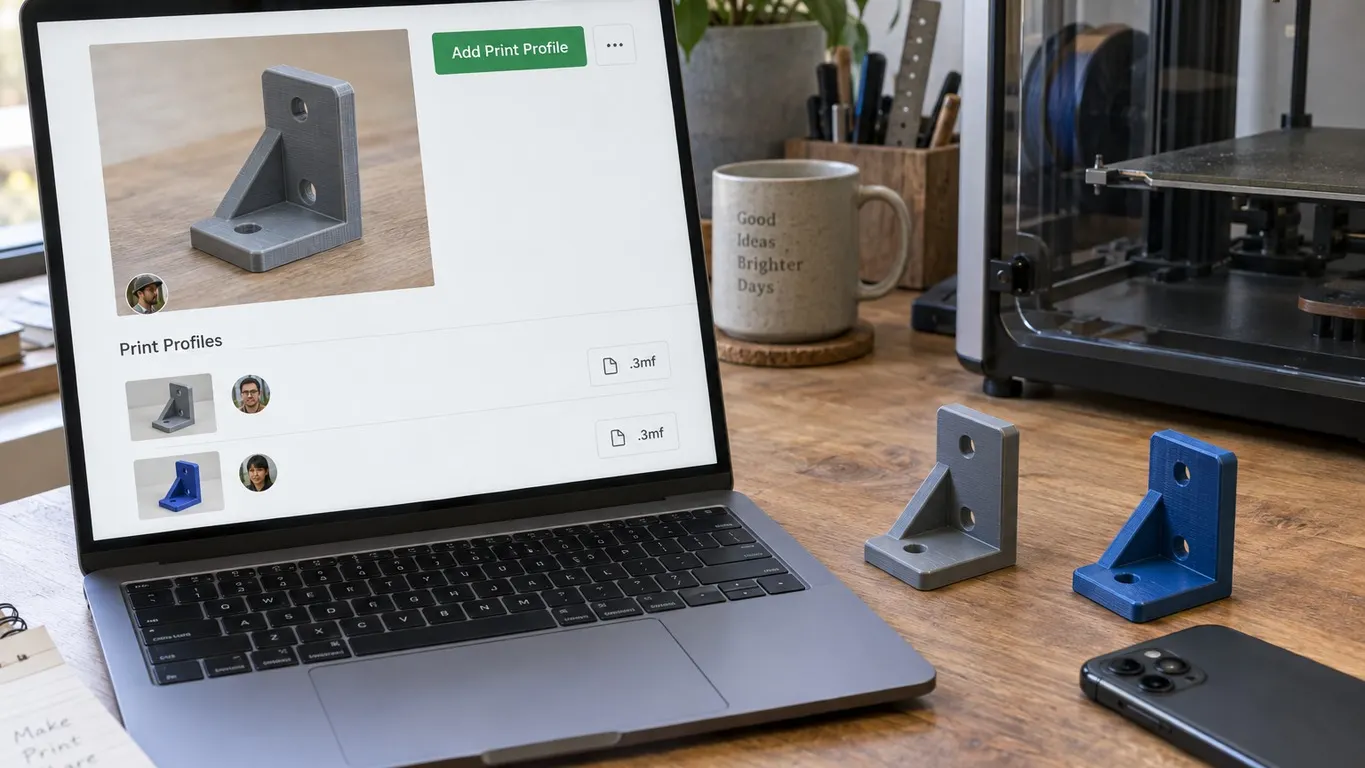
Bambu Lab's own wiki page "How to Upload Models and Print Profiles" answers it in one line. To add a profile to a published model you click Add Print Profile in the upper right corner of the model's page and upload a Bambu Studio .3mf file. The wiki draws no distinction between your models and anyone else's; a published model page is a published model page.
Dates matter here, because the forum thread is old. That wiki page was created on 10 February 2025 and its most recent edit is stamped 5 June 2026, roughly two years after the thread. One honest limit goes with it: MakerWorld itself blocks automated requests, so I could not check how that button renders on screen today. The most current source available is Bambu's own documentation, and it puts the control in the upper right corner of the model page.
Worth separating from a neighboring idea while you are here. A slicer preset and a MakerWorld print profile are not the same object, a distinction drawn in the presets article. What gets uploaded here is a project file carrying geometry, not a settings preset.
Why nobody could find it in 2024
The accepted answer in the thread is a single sentence:
You want to click on the three dots in the upper right hand corner of any given model
What makes the thread worth reading is the reply that follows it. The original poster explains that those dots sit right next to Copyright Claim, and that they had deliberately left them alone for fear of filing an accidental copyright claim against somebody else's model. The option was on screen the whole time. It just lived somewhere that looked dangerous to touch.
Then there is the documentation problem. The poster quotes the Bambu FAQ of the day, which described a +Add button inside the Print Profile field, and reports that on models with at least one profile already attached, no such button exists in that field.
On 6 June 2024 another member picked this up. They write that they had raised it with Bambu Lab in a support ticket and been told to post in the forums, and they ask for three things: fix the FAQ, fix the UI so the FAQ becomes accurate, and stop hiding print profile actions behind tiny dots next to the copyright link.
Set that request against the wiki text quoted above and at least the description has changed. The documentation no longer puts a +Add button inside the profile field; it points at Add Print Profile in the upper right corner, which is the corner the forum named all along. Whether the FAQ itself was ever corrected I could not check, since MakerWorld's own help pages block automated requests.
What the upload itself demands
Several requirements in the current wiki never come up in the 2024 thread at all.
| Requirement | What it means |
|---|---|
| Cloud slicing verification | MakerWorld slices the profile on its side before it publishes |
| Printer compatibility check | Printers that fail the check get switched off for that profile |
| A real printed photo | At least one photo of the actual print is required |
| Present the Points | Option to hand the MakerReward points to the model's designer |
That last row is aimed squarely at this article's question. The wiki states that when you add a print profile to a model published by another designer and want to give them the MakerReward points from it, you tick Present the Points. The case may sit awkwardly in the interface, but the platform has clearly thought about it. The photo rule has teeth too: the wiki says a print profile without at least one photo demonstrating printability may be taken down.
The shortcut on your own models
The wiki's add-a-profile instruction is ownership-neutral. The forum's is not, and part of the original confusion sits in that gap.
The person who opened the thread describes their own routine: go to My uploads, add the profile from the right corner of the model image. That description is from May 2024. A third case from the same thread: on a model with no profiles at all, a large "Add first print profile" button appears where the profile list would be. Neither of those was the gap. The gap was what to do on somebody else's page, where the My uploads menu is not theirs to open.
Do not confuse any of that with editing what you already published, which is a separate path: the wiki sends you to 3D Models → Published Models and Edit in the upper right of the page to change model information or raw model files, and to 3D Models → Published Print Profiles and the Edit control at the bottom right of the card to change a published profile. Both edit what exists; neither adds anything new.
Profiles for printers Bambu does not make
The thread is unusual because its author owns no Bambu printer. They upload models to MakerWorld and attach profiles for the Prusa MINI they actually print on, and another member notes with some surprise that non-Bambu profiles can be uploaded at all. That observation is from May 2024 and should be read with the date attached.
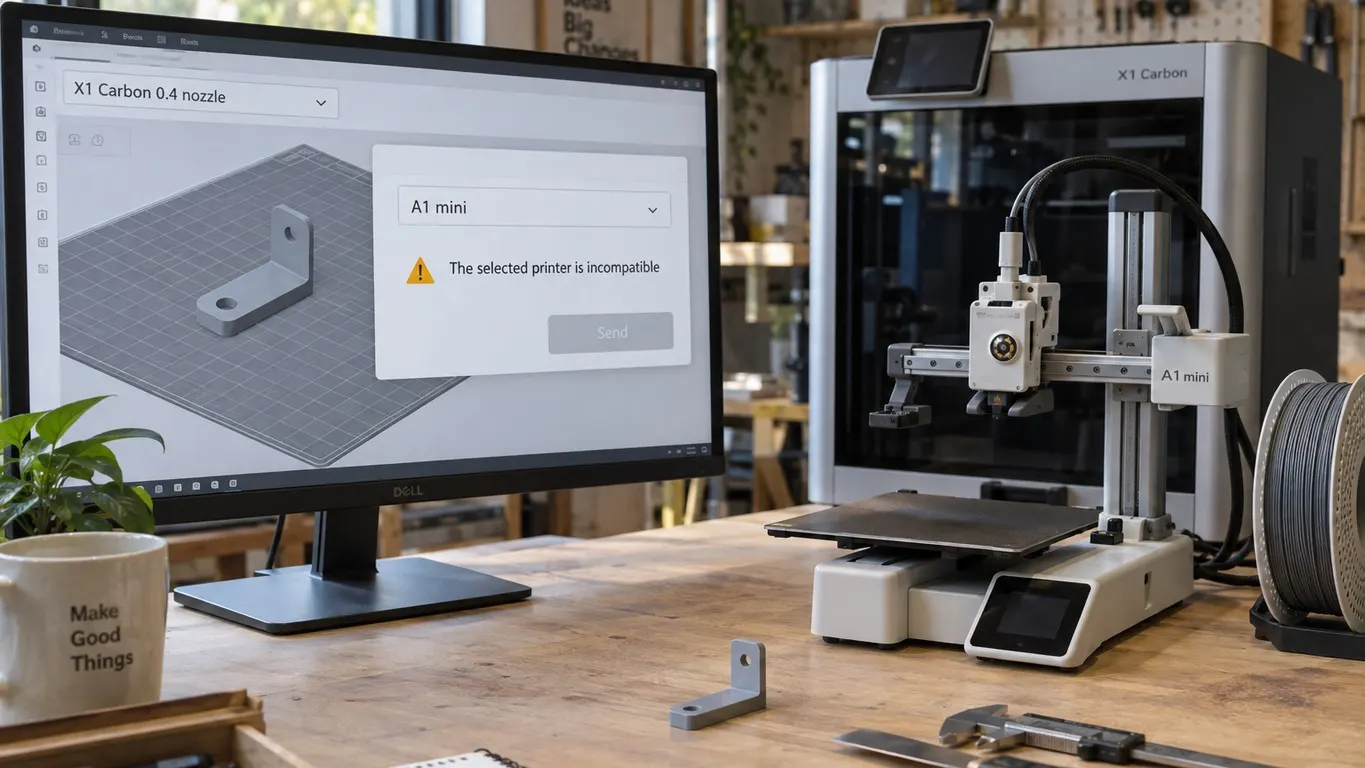
Today's documentation is narrower. The wiki defines a print profile plainly as a Bambu Studio file in 3mf format. Its troubleshooting section is blunter still: if the configuration file contains other printer presets or custom filament presets, slicing verification fails, and the stated fix is to set them to Bambu printers and Bambu filament presets.
The door is not shut, it has moved. The wiki's Upload Raw Model Files section and an accepted answer from 15 March 2026 draw the same line. When you upload a model you can skip the print profile and upload STL or non-Bambu 3MF files as raw model files instead, and other people can then come along and supply print profiles for it. Non-Bambu geometry belongs to the model; the print profile slot expects Bambu Studio output.
Getting another manufacturer's machine into Bambu Studio in the first place is its own exercise, described in adding a third-party printer. Whether the resulting file clears MakerWorld's verification is a separate question.
After the profile goes live
Publishing a profile on somebody else's model creates a relationship the model's owner cannot fully control, and the forum has a thread given over to the owner's side of it.
A thread from 15 August 2025 was opened by a designer frustrated that third-party profiles can be attached to their models with no way to remove them. A member carrying the Maker's Supply Contributor tag walks through reporting a profile from the three-dot menu on the model page, screenshots included, which incidentally confirms those dots are still present and still carrying profile actions. A second designer joined the same thread on 9 February 2026 reporting the identical problem. Delete power is the subject of the thread rather than something absent from it: the poster asks for a way to remove, block or disallow third-party profiles, and another member notes the request has come up repeatedly over the years. Reporting is the only tool that exists.
Read practically, that cuts in your favor. A profile that follows the rules, carries genuine photos and is labeled for the right printer and material is not something a model owner can simply wipe off their page.
The page is not yours but the byline under the profile is. Anyone who lands there reads your account, not the designer's, so settle changing your account name before the first upload.