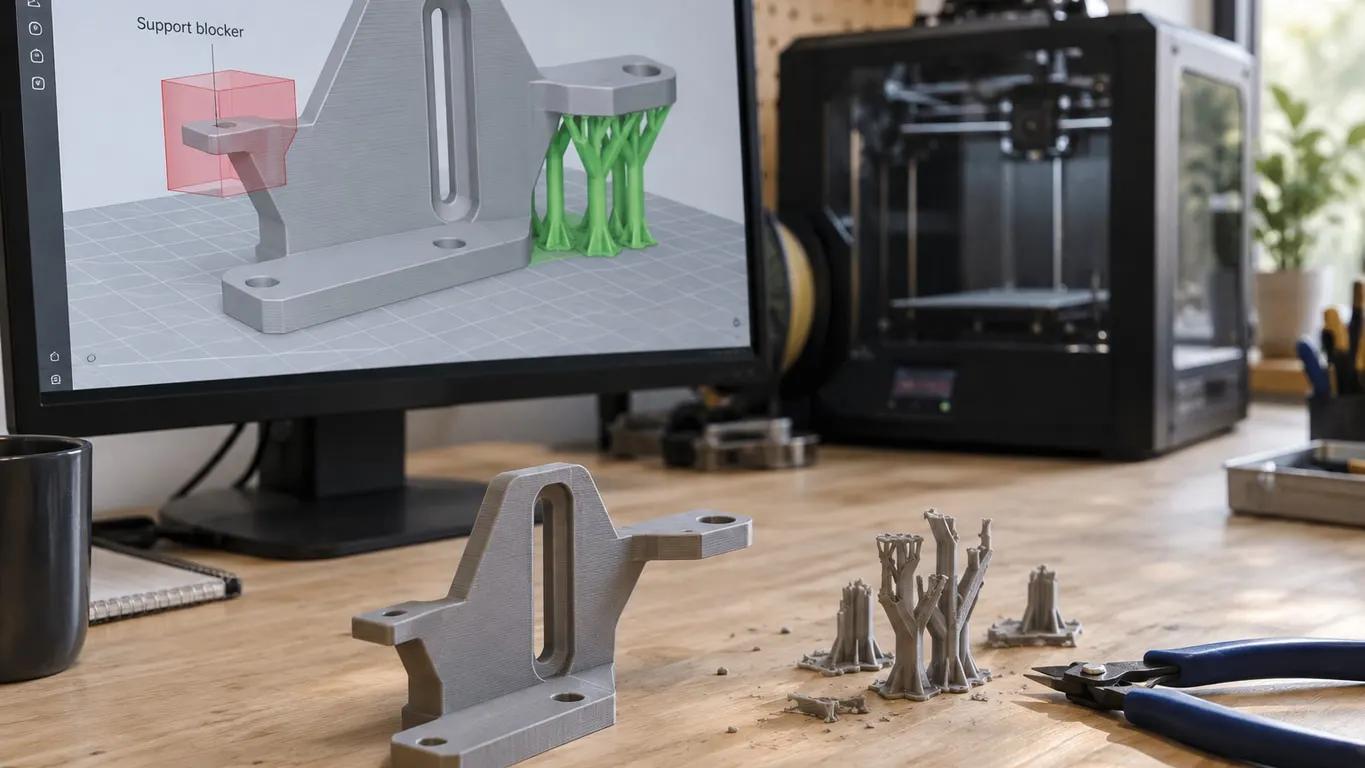
A support blocker in Bambu Studio keeps automatic supports out of an area, but it acts on the overhang a support would hold up, not on the empty space the support passes through. That detail, plus the fact that enforced areas override a blocker, explains a blocker cube that seems to do nothing. Towers wedged into a narrow groove are a separate problem with a separate fix, Support/object xy distance, and limiting supports to painted faces is a job for the manual support types.
Quick fixes
- A blocker that does nothing: make it enclose the overhanging face the support would hold up, not the gap below it, and erase any left-click (enforce) strokes inside it. Enforced areas win over blockers.
- Towers in a narrow slot: raise Support/object xy distance (Support tab, Advanced group, visible once the Advance switch at the top of the process panel is on) to more than half the slot width, then slice again.
- Support only on chosen faces: pick normal(manual) or tree(manual) under Type, open Supports Painting with L, and left-click the faces that need it.
- Tree supports filling in under short bridges: raise Max bridge length, which Bambu's presets set to 0.
- No support at all: untick Enable support.
When a blocker cube does nothing
There are two ways to block support in Bambu Studio. With the brush, open Supports Painting (the L key) and paint with the right mouse button. With a volume, right-click the model, hover Add support blocker and pick Cube; the same submenu also has Cylinder, Hexagonal Prism, Sphere, Cone, Disc, Torus and a few more, plus Load... for using your own mesh as the blocker. Move and scale it over the region you want left clear.
When a blocker cube seems to do nothing, check two things. First, where it sits. Layer by layer, the slicer works out which part of the model overhangs and needs support, removes whatever falls inside the blocker's cross-section, and grows support columns down from what remains. A cube placed only in the gap a tower runs through changes nothing if the face that tower holds up is outside it. Size the cube so it swallows the overhanging face itself; with the brush, block the face, not the area under it. Normal and tree supports treat blockers the same way.
Second, whether anything in that area is enforced. Blockers only trim automatically detected overhangs. Left-click strokes and Add support enforcer volumes are added after that trim, so they get support even inside a blocker; clear them with Shift + left button or Erase all painting. For the same reason a blocker changes nothing on a manual type, where every support already comes from an enforcer.
The painting tool shows its bindings in its own panel:
| Input | Label in the tool |
|---|---|
| Left mouse button | Enforce supports |
| Right mouse button | Block supports |
| Shift + Left mouse button | Erase |
| Ctrl + Mouse wheel | Pen size |
| Alt + Mouse wheel | Section view |
Turning on Highlight overhang areas colors faces by overhang angle, and On overhangs only then restricts the brush to those highlighted faces, which keeps a block stroke from spilling onto walls you meant to leave alone. Erase all painting wipes every stroke on the selected object in one click.
Supports only on the faces you choose
If the goal is support in two or three chosen spots and nowhere else, change Type, not the brush. The dropdown offers normal(auto), tree(auto), normal(manual) and tree(manual), and Bambu's stock process presets start on tree(auto). An auto type scans the model for overhangs using Threshold angle; a manual type skips that scan and builds support only on enforcers, meaning faces painted with the left button plus any volume added through Add support enforcer. That is why Threshold angle grays out the moment a manual type is picked.
Staying on auto and painting the whole model with block, then enforcing one spot, gets you close, but on a model with many faces it takes ages; a manual type does it in a few strokes. Changing Type also resets Style to Default, so set your style again afterward.
Adding supports on purpose, enforcer cubes included, is covered in adding supports in Bambu Studio; this page handles the opposite job.
Towers in a narrow slot
Picture a slot running cleanly from the bed to the top of the part, with nothing above it to hold up, and Bambu Studio still stands a support tower inside it. On one such part the tower stopped about 20 mm below the top and gripped hard enough that prying it out broke the part. Neither switching Style to Snug nor trying every Threshold angle from 1 to 90 removed it. What did: raising Support/object xy distance to 1 mm in a slot narrower than 1 mm.
That follows from how the setting works. Support is trimmed on every layer against the model's outline grown by the xy distance, so each wall of the slot claims that margin. With two walls, a slot narrower than twice the distance leaves support nowhere to go. At the 0.35 mm default the cutoff is 0.7 mm: no tower fits in anything narrower. Tree supports read the same distance when keeping branches clear of the model.
| Setting | Where | Default | Allowed |
|---|---|---|---|
| Support/object xy distance | Support > Advanced | 0.35 mm | 0-10 mm |
| Support/object first layer gap | Support > Advanced | 0.2 mm | 0-10 mm |
| Z overrides X/Y | Support > Advanced | Unticked | Checkbox |
Raising the value has a cost. It is an object-wide setting, so every support on the part, including the ones under real overhangs, moves back from nearby walls by the same amount. Before blaming the number, look at Z overrides X/Y: with it ticked, the side gap becomes the smaller of the xy value and the Top Z distance (never below 0.2 mm), so a bigger xy value may change little. It ships unticked, and its tooltip limits it to one style: "Only recommended to enable when using HybridTree."
Cutting support back, or switching it off
Several rows on the Support tab reduce support without any blocking at all:
| Setting | Default | Effect | Shown for |
|---|---|---|---|
| On build plate only | Off | Support may start only on the plate, never on the model | All types |
| Support critical regions only | Off | Supports only critical regions such as sharp tails and cantilevers | tree(auto) |
| Remove small overhangs | On | Drops small overhangs that probably need no support | All types |
| Don't support bridges | Off | Leaves whole bridge areas unsupported | Normal |
| Max bridge length | 0 in Bambu's stock presets | At 0 every bridge is supported; raise it and bridges up to that length go unsupported | Tree |
Bambu's stock presets set Max bridge length to 0, which tells tree supports to hold up every bridge. Raising it is one of the quickest ways to strip support out from under short spans; the row only shows for tree types. For normal types the equivalent is the Don't support bridges checkbox.
Style matters too. Snug exists only for the normal types, whose list reads Default, Grid and Snug; tree types get Default, Tree Slim, Tree Strong, Tree Hybrid and Tree Organic instead. Snug hugs the overhang rather than expanding the support area, so it uses less material and scars the part less. On auto types, Threshold angle sets how steep a face can be before it is left alone: support goes under faces whose angle to the horizontal is below the value, 30° by default, so a lower number means less support. On build plate only keeps support off the model's own surfaces but leaves anything rising from the plate untouched.
To turn support off entirely, untick Enable support, the first row of the Support group. Nothing is generated with it off, painted and enforcer supports included, and, unless a raft is on, the rows below gray out. Bambu's stock presets ship with it off, so if it is on, you are using a process preset you saved yourself, the 3MF you opened saved it that way, or the object carries its own override; switch the sidebar to Objects to check.
Often the cleanest answer is a part that needs no support in the first place. Orientation tools are in rotating, scaling and mirroring, and ways to fix an overhang without support are in the overhang article.