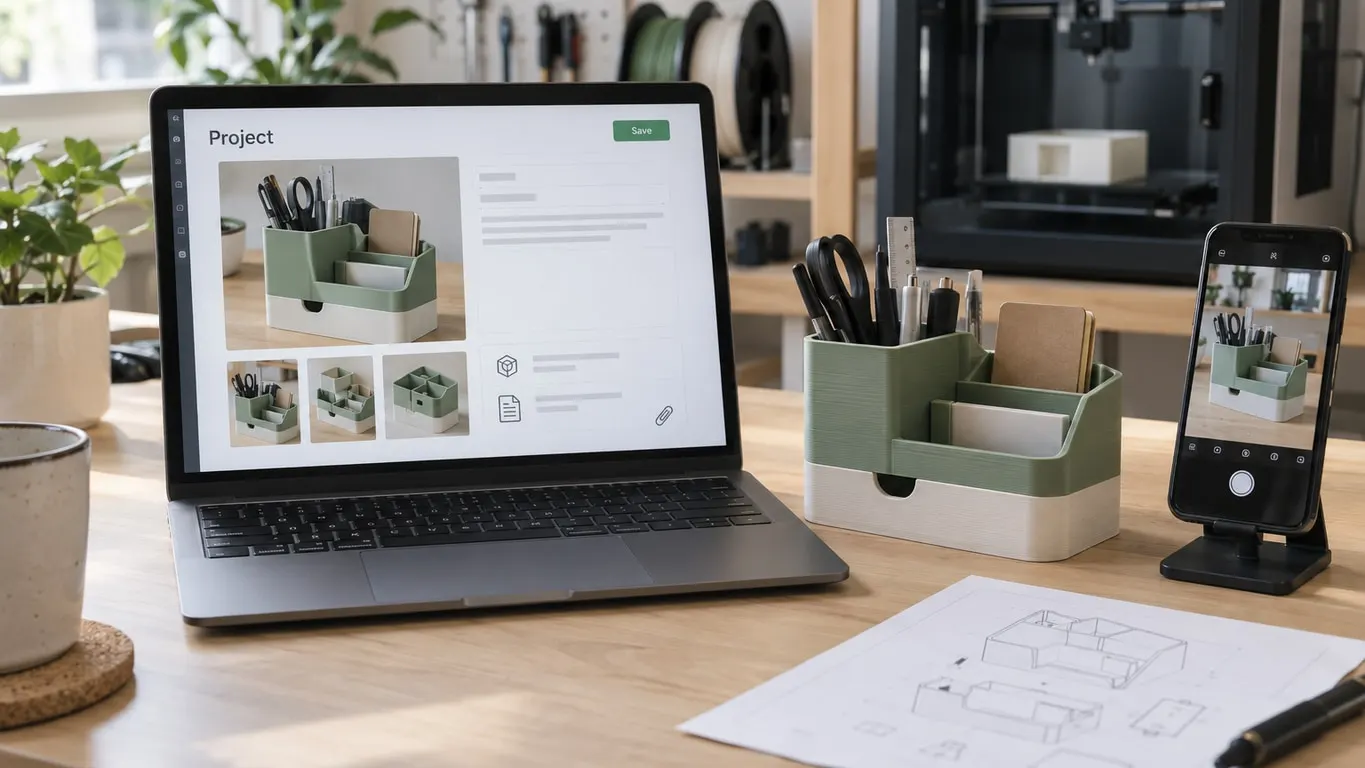
Bambu Studio project information is the name, description, pictures and attached files shown on the Project tab, and you can edit it again. From 1.6.2.4 in April 2023 until 2.4.0 in November 2025 the tab was read only: it showed what came with a MakerWorld download and nothing for your own files. The 2.4.0 release notes brought back editing, and the current stable release, 2.8.2.61, ships the same editor in its source. Removing details a MakerWorld download brought along is a different matter. There is no button for it, but re-importing the model as geometry only leaves them behind. A blank tab that reads no model information means a release older than 2.4.0.
Quick steps
- Run Bambu Studio 2.4.0 or later.
- Open the Project tab. A project with no information shows Please add the project information and a + Add button; one that has it shows Edit in the top right corner.
- Fill in Project Name, Description and at least one picture under Pictures. Attachments go in through Add accessories.
- Click Save at the top of the page, then save the project itself with Save Project (Ctrl+S). Only that second save writes anything into the 3MF.
Required fields and the editor's limits
Three fields are mandatory, and Save refuses to go through with any of them blank. The messages are The project name is empty., The project pictures is empty. and The project description is empty. A picture is mandatory too: a name and a description alone will not save.
| Field | Accepts | Required |
|---|---|---|
| Project Name | Text | Yes |
| Pictures | JPG, GIF, PNG, up to 4 MB each | At least one |
| Description | Formatted text | Yes |
| Bill of Materials | xls and xlsx up to 10 MB, pdf up to 50 MB; 10 files max | No |
| Assembly Guide | jpg and png up to 10 MB, pdf up to 50 MB; 25 files max | No |
| Other | txt up to 10 MB; 10 files max | No |
| Profile Name, Profile Pictures, Description | The profile section | No |
A few behaviors are worth knowing before you rely on the editor:
- Save on the page only changes the project that is open. Bambu Studio marks the project as modified, so nothing reaches the .3mf on disk until Save Project runs; quit first and it asks whether to save.
- While the editor is open, Return with pending changes, or a click on another tab, brings up a save prompt.
- The first picture is the cover, labeled Model cover; any other picture can replace it through Set as cover. Saving rebuilds the 3MF thumbnails from the cover.
- There is no field for the author, nor for the ID that links a project to a MakerWorld model. Rename a MakerWorld download and rewrite its description all you like; the designer's name stays.
The lower half of the editor is the profile section, the local counterpart of a MakerWorld print profile; what a print profile is explains why the two are kept apart.
Where it lives inside the 3MF
A 3MF is a zip archive, and the project information sits in two places in it. The pictures and documents live under Auxiliaries/, one folder per kind: Model Pictures, Bill of Materials, Assembly Guide, Others and Profile Pictures, plus .thumbnails holding thumbnail_3mf.png, thumbnail_small.png and thumbnail_middle.png.
The text is metadata at the top of 3D/3dmodel.model, one <metadata name="..."> line per value:
| Metadata name | Holds |
|---|---|
Title |
Project name |
Designer, DesignerUserId |
Author name and account ID |
DesignerCover |
Cover picture file name |
Description |
Project description |
Copyright, License |
Rights fields |
ProfileTitle, ProfileCover, ProfileDescription |
Profile section |
model_id, Region |
Written only when the project is linked to a MakerWorld model |
Date and application version lines get rewritten on every save. Bambu's wiki page on the project based workflow, last edited May 28, 2024, lists project resources (BOM, assembly guide, pictures) and author information among the things a project file carries. No wiki page describing the new editor turned up.
Opening a 3MF as a project reads both the metadata and Auxiliaries/. Import geometry only reads neither, and that is the lever for the next section.
Stripping MakerWorld details from a file
The only route that works without opening the archive is a geometry-only re-import into a new project. Nothing on the Project tab clears or unlinks a project: the editor demands a name, a picture and a description, and has no author field. Export Generic 3MF is no shortcut either, since it writes the same metadata and the same Auxiliaries/ folder.
The catch is that Bambu Studio offers Open as project or Import geometry only only when the plate already holds something. A 3MF dropped onto an empty plate opens as a project with no prompt. So:
- File > New Project (Ctrl+N).
- Add any throwaway STL to the plate.
- Use File > Import > Import 3MF/STL/STEP/SVG/OBJ/AMF (Ctrl+I), or drag the 3MF in, and pick Import geometry only.
- Delete the throwaway object and write the result with Save Project as.
Open the new file afterward. If the Project tab reads Please add the project information, the old name and description did not come along.
That convenience has a price. The printer, filament and process settings stay in the old file, and whatever presets are selected now remain. G-code inserted at specific layers (pauses, filament changes, custom G-code) is dropped, and per-object and per-part setting overrides are reset, with only the filament assignment kept. A July 2024 GitHub report adds that the plate layout had to be rebuilt; a November 2024 comment on the same report says a new project did not break the link. Both predate 2.4.0. Keep the original file and save the clean copy under a new name.
Files from other slicers get the same geometry-only treatment, which is what the not-from-Bambu-Lab warning covers.
Hand-editing is the other option: delete Auxiliaries/ from the archive and blank out the metadata values. Nobody has confirmed that Bambu Studio opens such a file cleanly. If you try it anyway, the sliced file guide has the one repacking rule that matters: zip the folder's contents, not the folder.
Read only from 2023 to 2025, and what to watch now
The editing tools vanished in 1.6.2.4, released April 28, 2023. In May 2023 Bambu said on GitHub that the project module was being redesigned and was temporarily unavailable. The 1.7.0 beta notes of July 7, 2023 listed the report (#1723) among bug fixes, yet no editing came back, and 1.7.6.92 in September 2023 still had none. In October 2023 Bambu called the tab read only, there to display models downloaded from MakerWorld. Its suggested route for getting information into a 3MF was to upload it to MakerWorld, privately if you like, and download it again once published.
1.10.0.89 in November 2024 made the project name a link to the MakerWorld page and let you copy the description. Editing itself returned with 2.4.0.70 on November 18, 2025. During the gap, OrcaSlicer was the place to keep notes in a project: its Project tab has an Edit Project Info button in 2.0.0 and in the current 2.4.2.
What leaves your computer depends on how it leaves. The job Bambu Studio builds for Print plate skips Auxiliaries/. Send a .gcode.3mf you opened from disk, though, and that file goes out as is, folder included. A .gcode.3mf written with Export plate sliced file carries the folder too, every picture and document in it. MakerWorld uploads work differently again: per the 2.4.0 notes, the project page inside the 3MF is replaced by whatever you fill in on MakerWorld. A cleaned file is not fully anonymous either: save a project with no designer while signed in to your Bambu account and your own user ID goes into the DesignerUserId line.
If a MakerWorld download goes to the printer under its original configuration name rather than the name you gave the project, only the beta channel has a fix so far. The 2.8.4.57 notes of September 22, 2026 say Bambu Studio now sends such a model under your current project name. Whether a beta is worth installing for that is something beta versus stable releases helps you weigh.