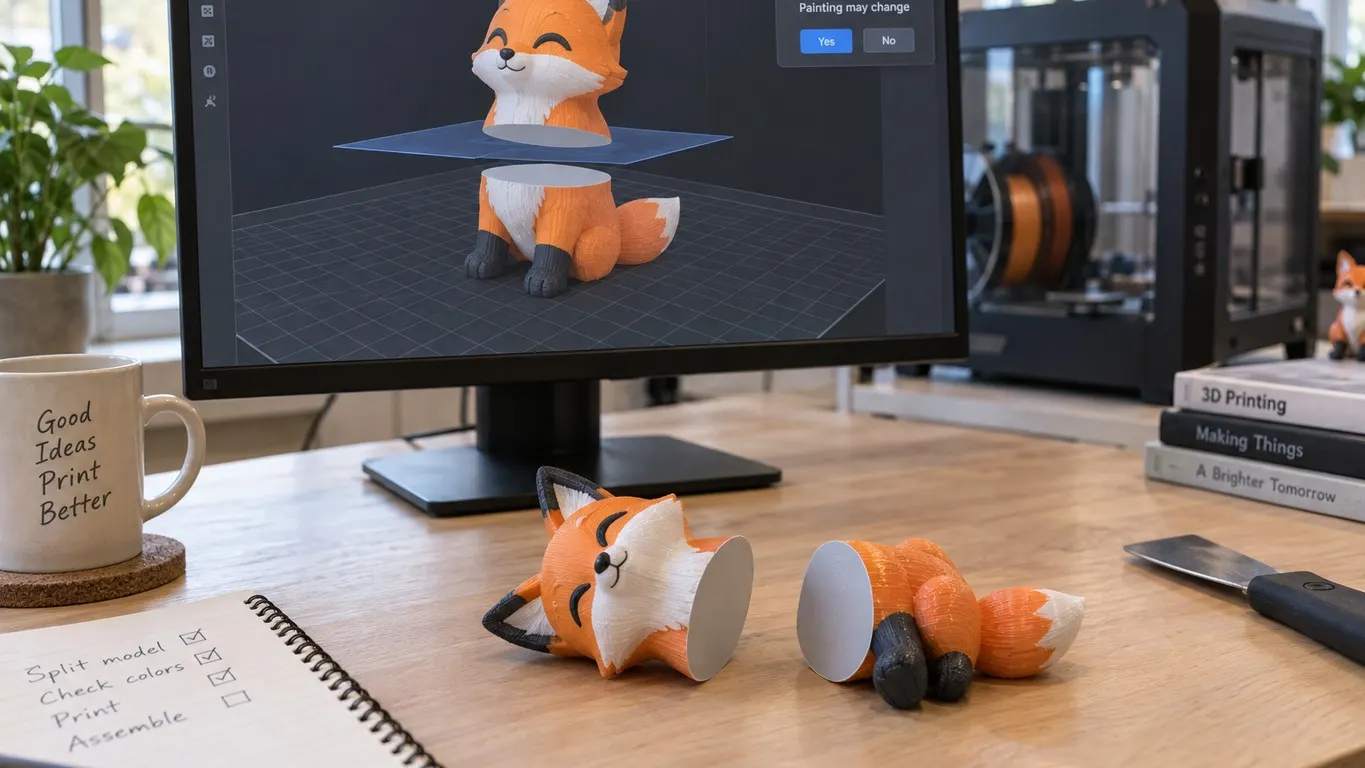
Search for a way to cut a painted model in Bambu Studio without losing the paint, and the top forum thread still points you back to 1.07.07.89. That answer was wrong when it was posted, and its author said so a month later. The real answer arrived in 2026: a Planar cut keeps painted color from 2.7.0 Public Beta (May 14, 2026) and from the first stable release that carried it, 2.7.1 (June 1, 2026). Dovetail cuts, and cuts where you move a part to the other side with a right click, only keep it from 2.8.2 (August 14, 2026).
The thread in question is "Cut without lose painting?" on the Bambu Lab forum, opened in January 2024. For more than two years it collected the same report. One early reply sums it up:
It seem no matter what is done, once you cut a painted object it looses the coloring. Changing the painting mode does not make a difference.
People confirmed it again on 1.10.1.50 in December 2024 and on 1.10.2.76 in February 2025.
Which versions keep the paint
Bambu Studio's release notes on GitHub and its source code line up on this:
| Version | Released | Planar cut | Cut with a part reassigned | Dovetail |
|---|---|---|---|---|
| Anything before 2.7.0, including 1.07.07.89 | Before May 14, 2026 | Paint lost | Paint lost (mode absent before 1.8) | Paint lost (mode absent before 1.8) |
| 2.7.0 Public Beta | May 14, 2026 | Kept | Lost | Lost |
| 2.7.1 Public Release through 2.8.1 Public Beta | June 1 to July 14, 2026 | Kept | Lost | Lost |
| 2.8.2 Public Release and later | August 14, 2026 | Kept | Kept | Kept |
The 2.7.0 notes announce it under the heading "Painted Color Information Preserved After Plane Cut": painted color survives a plane cut, so there is no need to repaint afterward. The contribution came from a developer credited as @solidblu in pull request 10613, and the commit says it was based on the corresponding PrusaSlicer fix. The Dovetail row comes from the 2.8.2 notes. The middle column is not in any release note; it comes from the source, and the next sections explain it.
Why rolling back to 1.07.07.89 never helped
This is the post marked as the solution, from March 2024:
Cutting without loosing painting worked in version 1.07.07.89 of Bambu Studio but has been broken since version 1.08.02.56 the entire object gets changed to a single color after a cut operation.
The author added that they keep 1.07.07.89 in a virtual machine for exactly this job. Four weeks later another user downloaded that version, cut a painted figure and lost the colors anyway. The author came back and corrected themselves:
I was using a model that had separate parts that had different color filaments assigned and not colored with the paint tool.
and, in the same post:
You are correct, if the paint tool is used then the colors will disappear when the cut tool is used even with the older version of Bambu Studio.
A third user reported the same failure on 1.07.07.89 in May 2025. The source settles it. In 1.07.07.89 the cut function resets the support, seam and color paint on every volume before it cuts anything, and every release up to 2.7.0 did the equivalent. Whichever brush you use, the color data lives in the same place and is wiped in the same step, which is why switching paint modes made no difference. So there is no old version to go back to. The thread still shows the green checkmark, though, so that is the first thing anyone arriving from a search reads.
What about the separate-parts case the author was describing? That one has a documented cause. In the 1.8 series, whose first stable build was 1.08.02.56 on December 14, 2023, a Planar cut went down the part-selection path whenever Cut to parts was unchecked, and that path merged every solid part of the object into one volume, dropping per-part filament assignments. GitHub issue #3554, filed in February 2024, reports exactly that: cutting a multi-part model kept its parts in 1.7 and fused them in 1.8. The 1.9.0 Public Beta notes (March 25, 2024) list the fix, and since then a plain Planar cut only takes the merging path when you reassign a part with a right click. Dovetail and reassigned cuts kept merging until 2.8.2, where a July 2026 fix stopped the merge from dropping per-part filament colors. So the author's first observation was right for filament-assigned parts; it just never applied to the paint tool.
The right-click exception from May 2026
Two posts close the thread. On May 24, 2026 one user wrote that they had only updated to the latest version, and their colored object "retained all the colors finally"; they wrote "sliced", which in this thread most likely means the cut. "Maybe they recently fixed it?" Six days later someone else narrowed it down:
I noticed it works fine when doing a standard cut. But if you right click on a selected region to deselect it from the cut it removes the paint from everything when cut if completed
Both posts landed after the 2.7.0 beta and before the stable 2.7.1, and neither names a version. The stable build at the time, 2.6.0, still wiped paint, so both were most likely on the beta. The second one matches a code path closely. In Planar mode, hover over the tooltip icon in the Cut panel and the shortcut list includes right click: Assign the part to the other side. When the plane splits a model into several separate pieces, a right click on one of them flips which half it goes to. Do that and the cut stops taking the plain plane path and takes the part-selection path instead, which until 2.8.2 merged the pieces back together without their paint. It rebuilt both halves, which is why the paint vanished "from everything" and not just from the piece that was clicked.
What a cut does to paint now
The first version of the fix, in 2.7.0 through 2.8.1, worked one triangle at a time. Each new triangle took the first painted state it found in the source triangle it came from, and the comment above that code admits that fine paint inside one source triangle collapses to one state on a cut. On a dense mesh you would never see it; on a low-poly model painted with a small brush, a color boundary can jump out to the nearest triangle edge. The 2.7.0 notes put it more mildly, as minor alignment differences on painted facets near the cut surface.
2.8.2 rewrote that step. Triangles the cut plane never touches now come across with their paint bit for bit, the triangles the plane slices through get their paint rebuilt from the geometry, and the new cross-section face gets none, so it prints in the part's own filament. Paint it after the cut if you want it colored. Before any of that, a cut on a painted model opens a Painting may change dialog warning that the mesh is being rebuilt, that color, supports, seam and fuzzy skin are carried over by a best-effort approximation and that some painting can be lost in rare cases. No is the default; press Yes to go on. The dialog only appears when the model carries paint, and the cut then runs behind a progress dialog you can cancel.
Support painting rides along too, from 2.7.0 on a Planar cut and in every cut mode from 2.8.2, since the cut carries all four kinds of paint the same way. That is a different tool from color painting despite the shared word; it is covered in adding supports.
Stuck on an older build? Work around the cut tool
If updating is not an option, the thread has two workarounds that avoid the cut tool entirely. The model is never cut, so the paint never goes anywhere.
The first is a negative part. Posts from January and May 2025 suggest right-clicking the object and using Add negative part; it gets subtracted at slicing time, so you can take a chunk of any shape out of the model. How a negative part differs from a modifier is laid out in the height range article. Two limits apply. As a February 2025 reply points out, you lose the cut tool's automatic connectors, because connectors are a feature of the cut tool itself. And it replaces the cut rather than surviving one: in October 2025 a user added a negative part, then cut the model, and the paint went just the same. Getting two separate halves this way means duplicating the object and giving each copy an opposing negative part, which that February reply also calls easy to misalign.
The second is only for removing the bottom of a model, say to flatten a base or to restart a print that failed partway up. A February 2026 post calls it the fastest way:
The slicer will only print things above the build plate
so you shift the model down by the height you want to lose. An older recipe from April 2025 says to add a small cube first to be allowed to do that. The source does not require the cube. A Z value typed into the Position fields of the Move tool is applied as a move, and the check that runs afterward only drops objects that float above the plate back onto it; an object sunk partway into the plate is left where it is. What it will not allow is sinking the whole object below the plate. Where the Move tool lives, and its shortcut, is in the rotate and scale article.
A quick checklist
- Check your version. On 2.8.2 or later, cut, answer Yes to the warning, then look at the color of the cut face.
- On 2.7.1 through 2.8.1, a plain Planar cut is safe; check color edges on low-poly models. Skip the right-click reassignment and skip Dovetail, or move up to 2.8.2.
- On anything before 2.7.0, update. Do not roll back: no older version, 1.07.07.89 included, keeps paint-tool colors through a cut.
- If you run betas, remember the fix reached the beta channel first. Keeping a beta and a stable install apart is covered in the portable version article.
- Save before you cut. A user in January 2025 lost an hour of painting on their first cut and was glad they had saved first. The cut is also a single step in the undo history, so you can undo it if the result looks wrong.
The thread has carried a solved mark since March 2024. The real fix reached the beta for Planar cuts in May 2026 and covered dovetail and reassigned parts only in 2.8.2 that August, so the version you want is the newest one, not an old one.