When Bambu Studio is not opening on Windows, the first thing to settle is whether anything shows up at all. A cursor that spins for half a second and then nothing, no process in Task Manager, no splash screen, and an empty BambuStudio folder under AppData: that pattern points at the Microsoft Visual C++ runtime, and reinstalling it by hand is the fix that matches this symptom. If a dialog does appear, its text tells you which fix applies.
Quick fixes, in this order
- Reinstall the Visual C++ runtime.
- Update your graphics driver.
- Restart Windows.
- If a dialog appears, match its text in the next section.
- If it mentions the configuration file, back up the whole
%APPDATA%\BambuStudiofolder before renaming or deleting anything.
Steps 1 to 3 are the wiki's recipe for LoadLibrary failed with error 126; none of them touch your settings.
Match the dialog to the cause
Each of these dialogs points to its own cause:
| What the dialog says | Likely cause | What to do |
|---|---|---|
| VCRUNTIME140.dll or MSVCP140.dll missing | Visual C++ runtime | Reinstall the runtime |
| LoadLibrary failed with error 126: The specified module could not be found | Runtime or graphics driver | Runtime, driver, restart |
| Unsupported OpenGL version | OpenGL below 2.0 | Update the graphics driver |
| GUI initialization failed with configuration file read failed | BambuStudio.conf cannot be read | Back up, then rename it |
| Following DLLs have been injected into the BambuStudio process | A third-party DLL loaded into Studio | Stop or uninstall that service |
| Command line argument 0 couldn't be converted to Unicode and will be ignored | Unsupported characters in the install path | Reinstall to an English-only path |
The OpenGL dialog reads "The application cannot run normally because OpenGL version is lower than 2.0." followed by "Please upgrade your graphics card driver." The Unicode one traces back to the install path, which in the wiki's example had Chinese characters in a folder name. Reinstalling into a plain English path is the first move.
Only one dialog names a culprit outside Studio itself. Titled simply Warning, it prints the full path of every DLL that was loaded into the process from outside. Bambu's own example is ASUS Sonic Studio, whose Nahimic driver crashes Studio on a secondary monitor. Stopping or uninstalling that service is the fix.
When nothing appears at all
Silence on launch is the case the Bambu wiki files under Missing VCRUNTIME140.dll, MSVCP140.dll, etc on its Bambu Studio Installation Troubleshooting page. Its diagnosis is a Visual C++ runtime install that failed, and its fix is to run that install again by hand.
Start with Microsoft's package, which the wiki also recommends. The page is Latest Supported Visual C++ Redistributable Downloads (learn.microsoft.com/cpp/windows/latest-supported-vc-redist), and on 64-bit Windows the file sits behind a permanent link, https://aka.ms/vc14/vc_redist.x64.exe. One v14 package covers Visual Studio 2017 and later and supports Windows 10 and 11.
Studio also carries its own copy in the plugin folder of the install directory. The wiki's screenshot shows C:\Program Files\Bambu Studio\plugin holding vcredist2019_x64.exe, dated 2022, so your build may name it differently. On the portable zip no installer ever ran, so go straight to Microsoft's download. If the runtime still refuses to install, the wiki blames conflicting settings on the machine and recommends a clean, genuine copy of Windows.
Early in startup Studio creates its data folder and a log folder inside it. An AppData folder with no log folder means it died before that point. Read Windows' own record instead: open Event Viewer, go to Windows Logs > Application, and find the errors from the minute you double-clicked. A VCRUNTIME or MSVCP DLL named there sends you back to the runtime; a file from your graphics vendor makes the driver the likely suspect.
After an update, check the installer. If it keeps saying Bambu Studio is running, the wiki says the old version could not exit properly: restart, then install again. If it cannot overwrite a file, the wiki points at BambuSource.dll, registered as a Windows Media Player playback plugin and liable to be held open by other media software. Restart, or close the media app that starts with Windows and grabs it again.
Windows N editions have one more trap. According to the wiki page Bambu Studio does not load on Windows, Studio does not load when the Windows Media Player feature is not enabled, which mostly happens on N editions. On Windows 10 the wiki's path is Settings > Apps > Apps & features > Manage optional features > Add a feature > Windows Media Player. On Windows 11 N, Microsoft's route is Settings > Apps > Optional features, then View features next to Add an optional feature, then Media Feature Pack. Reboot afterward either way. The zip and the installer are compared in the beta and stable article.
Studio opens, but the Home page is blank
A white Home page and an empty setup wizard put the C++ runtime in the clear. On Windows, Studio draws both screens with Edge's built-in browser component, so the wiki's Blank Home page and blank Wizard Dialog entry points at a broken Edge Runtime, the piece Microsoft ships as the WebView2 Runtime.
Reinstall it from either source. Microsoft's page, developer.microsoft.com/microsoft-edge/webview2, offers the small Evergreen Bootstrapper and, for an offline machine, the x64 Evergreen Standalone Installer. Studio's plugin folder has a copy too, named MicrosoftEdgeWebView2RuntimeInstallerX64.exe in the wiki's screenshot. Got This computer already has a more recent version of Microsoft Edge instead? Repair Edge first, the wiki says; if that does nothing, download Edge from Microsoft and install it over the old one.
For graphics cards that clash with the browser component, the wiki's workaround is an environment variable, WEBVIEW2_ADDITIONAL_BROWSER_ARGUMENTS, set to --disable-gpu-driver-bug-workarounds --ignore-gpu-blocklist, followed by a Studio restart. Other apps built on WebView2 can pick up the same variable, so delete it if it changes nothing. To test the component on its own, Bambu posts WebView2APISample on GitHub.
If Home loads but the printer list stays empty, that is a different component; see the network plugin article.
"Configuration file read failed": back up first
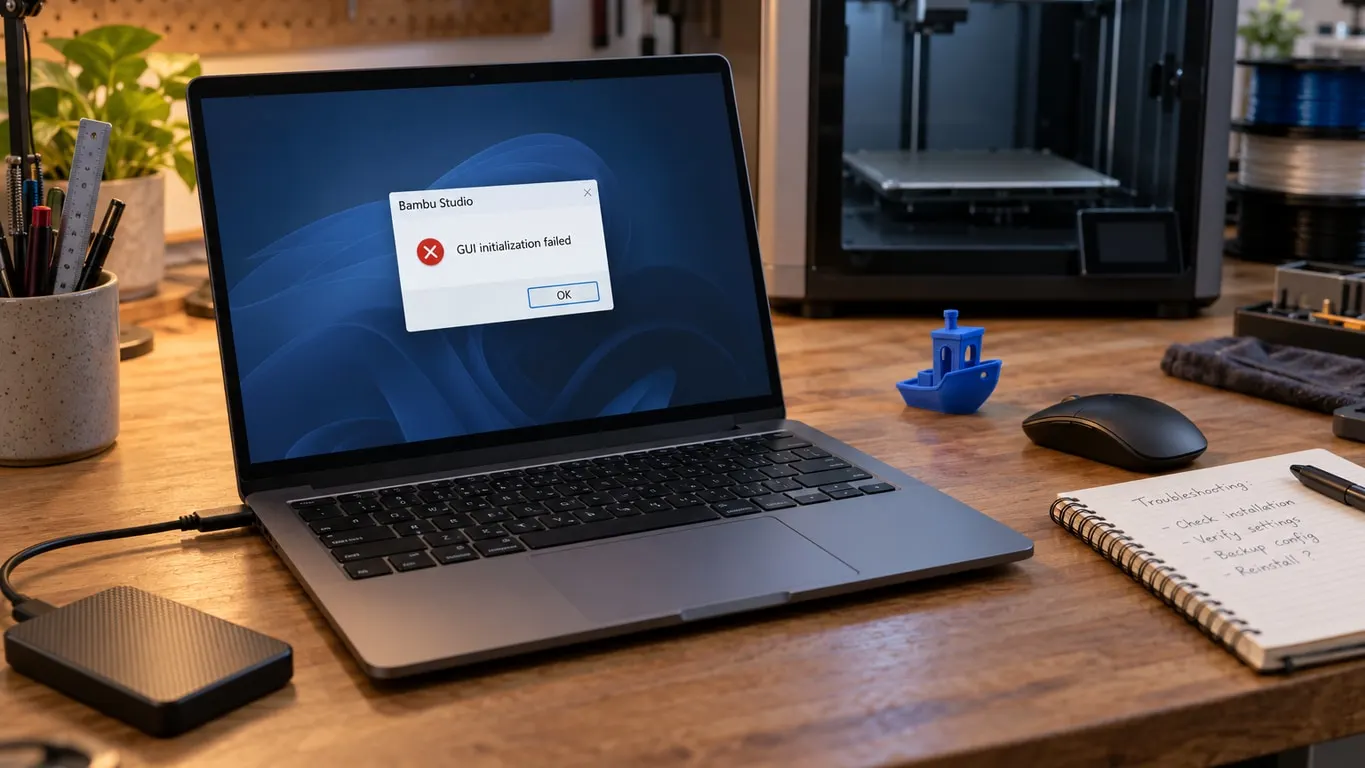
Every launch ends in the same box, titled Bambu Studio GUI initialization failed:
BambuStudio configuration file read failed. Please manually backup and delete it, and then restart BambuStudio software.
The file is BambuStudio.conf in %APPDATA%\BambuStudio, not in the program folder, which is probably why reinstalling does not clear the message. On Windows Studio first reads BambuStudio.conf.bak from the same folder before showing this box, and a backup that is damaged too gets deleted. Seeing it means there is no automatic way back, so your own copy is the only one.
- Quit Studio and check Task Manager for a leftover Studio process.
- Paste
%APPDATA%\BambuStudiointo the File Explorer address bar and copy the whole folder to your desktop. - Rename
BambuStudio.conftoBambuStudio.conf.backup. That is all the wiki'sfix-bambu-studio.batdoes. If an olderBambuStudio.conf.backupis already there, the rename fails, so move that one into your desktop copy first. - Launch Studio. Still stuck? The wiki's manual route also deletes the system folder, where Bambu's built-in presets live, along with the conf file.
Without a conf file, Studio treats the next launch as a first run and opens the setup wizard, so pick your printer models again. The conf file held your preferences (units, dark mode, language and region), the recent projects list and the enabled printer models. Your own presets sit in the user folder, in a subfolder for your account, and none of these steps touch it. The conf file does remember which account's subfolder to load, so if presets look missing, sign in with the same account first, then see missing presets.
When Studio does open, click the ∨ icon, then Help > Show Configuration Folder to reach that data folder, logs included; if it is hidden, turn on Hidden items under View > Show in File Explorer. If nothing here gets Studio running, the wiki asks for a support ticket with the log and conf file attached, so keep that desktop copy. If Studio opens and then keeps crashing, the Windows build writes a crash dump to that same log folder; attach the .dmp files to the ticket.